2026-11-16 Author : ZCS
Takeaway EPOS connects order capture, preparation and customer handover; it is more than a till that records payment. A small shop needs to receive the order, show what must be prepared, print the right ticket, identify the customer and mark the collection complete. The broader restaurant POS hardware guide covers full restaurant formats. This article focuses on compact takeaway counters.
The most useful buying question is not “How many devices are in the bundle?” It is whether one order can travel from the customer to the kitchen and pickup shelf without being retyped, lost or handed to the wrong person.
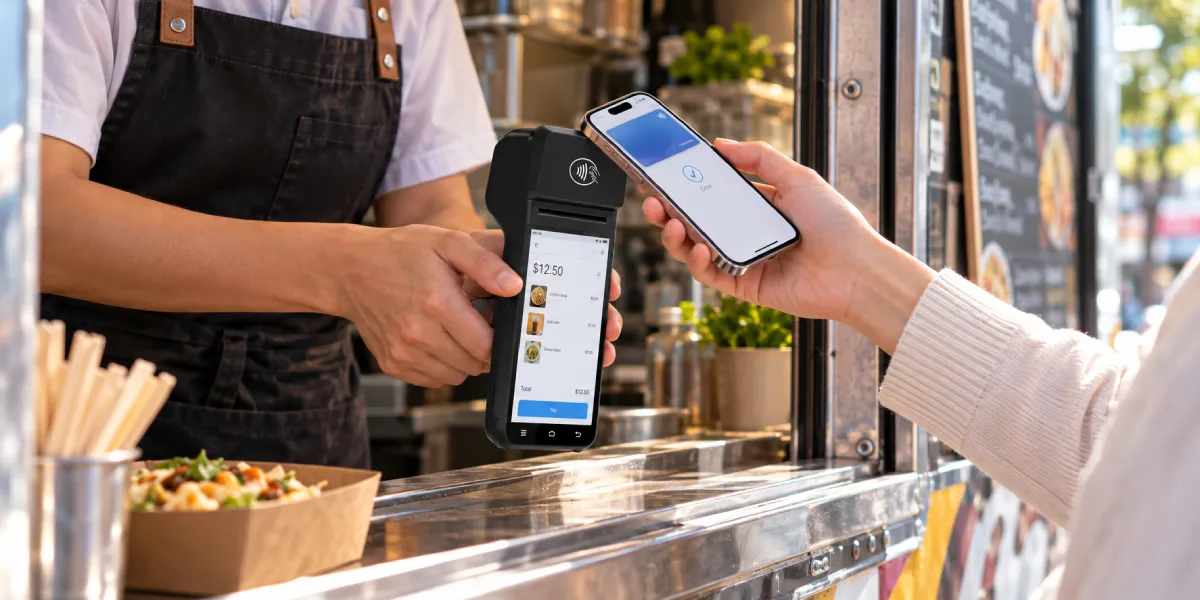
Takeaway EPOS is the combination of sales software and compatible hardware used to receive, prepare, pay for and hand over takeaway orders. The software controls the menu, modifiers, order status and routing rules. The hardware gives staff a screen, printer, scanner, payment connection and network access where the work happens.
A takeaway workflow normally has five stages:
The EPOS must preserve the same order identity through all five stages. If the counter calls it order 47, the kitchen ticket, packing label and pickup screen should not identify it as three unrelated records.
Following one order reveals which hardware is actually necessary. Imagine a customer orders two meals at the counter, removes one ingredient, adds a drink and asks to collect in ten minutes.
Each transition needs a confirmed state. “Paid” does not mean “sent to kitchen.” “Printed” does not mean “prepared.” “Ready” does not mean “collected.” A single green checkmark without a clear label can cause staff to skip a step.
Online ordering systems make the same distinction. Toast’s current online ordering setup guide separates order approval, kitchen auto-firing, dining options, payment configuration and test orders. That is one vendor’s workflow, not a universal interface, but it demonstrates why incoming orders need more than a payment notification.
A small counter may receive orders from several channels, and each channel can enter the EPOS differently.
| Order source | How it may reach staff | Main risk to test |
|---|---|---|
| Walk-in counter | Cashier enters it directly | Verbal modifier is missed |
| Telephone | Staff enter it while speaking to the customer | Wrong name, phone number or pickup time |
| Own website or app | Direct integration, middleware or separate tablet | Payment or menu status does not synchronize |
| Delivery marketplace | Merchant app, aggregator or POS integration | Order must be retyped or prints twice |
| QR ordering | Customer submits from a web or app flow | Order is not approved or routed to the kitchen |
The best setup does not necessarily force every channel into identical software. It gives staff one dependable operational view and makes the source visible. Marketplace orders may have their own refund, cancellation and commission rules even when their kitchen tickets look like counter orders.
Before buying hardware, list each channel and answer four questions:
If those answers are unclear, adding another tablet only moves the confusion onto a smaller screen.
Takeaway printing should be designed by destination, not by assuming every order needs one identical receipt.
| Output | Reader | Useful content | Best location |
|---|---|---|---|
| Customer receipt | Customer and cashier | Items, total, payment and collection reference | Front counter |
| Queue or pickup ticket | Customer and handover staff | Large number or name, order time and collection point | Front counter or pickup station |
| Kitchen ticket | Cooks or preparation staff | Items, modifiers, quantities, source and due time | Relevant kitchen station |
| Packing checklist | Packing or expo staff | Complete item list, drinks, sauces and packaging notes | Packing bench |
| Item label | Preparation and customer | Product, modifier, name, time and order ID | Drink, container or bag |
A built-in printer is useful for customer receipts, pickup numbers and compact order tickets at the counter. A hot or wet kitchen may still need a separate kitchen printer positioned near the preparation station, or a KDS that staff can read from a distance.
Toast’s takeout printing documentation allows takeout information and payment receipts to follow different printer settings. The exact options vary by platform, but the principle is broadly useful: route the document to the person who acts on it.
The AI-to-kitchen order guide explains the same control point for automated ordering: menu items and modifiers should be validated before a confirmed order reaches preparation. Whether a human, app or AI captures the order, the kitchen should receive one clear and executable version.
A small takeaway can use printed tickets, a KDS or both. The choice depends on order volume, station layout and how staff change order status.
A printer is simple to understand. Each accepted order produces a physical ticket that can move with the food. It works well for a small preparation area where one station handles most products.
Check:
A KDS keeps orders in a digital queue and can show new, preparing, ready and completed states. It is useful when staff need timers, station routing or a shared view of many open orders.
The limitation is placement and interaction. A display that cooks cannot see, touch or hear during a rush becomes an expensive list. A KDS also needs a fallback procedure for network, power or screen failure.
A counter can print the customer’s pickup ticket while a KDS manages preparation. Another shop may use a kitchen printer and a small screen at the pickup shelf. The right design is the smallest one that preserves order identity and recovery.
The order type should be visible before it reaches preparation. A takeaway ticket may need a pickup time and customer name. Dine-in needs a table or seat. Delivery needs an address, courier or platform reference.
EPOS Singapore’s dining-mode documentation shows one implementation in which “Takeaway” or “Dine-in” appears on kitchen slips, KDS screens and labels. The important point is not the vendor’s menu path. It is that the service mode travels with the order.
Use a short, consistent label rather than relying on ticket colour alone. Staff should still identify the order correctly on a black-and-white printout, a dim screen or a copied ticket.
For scheduled collection, store both the time the order was placed and the promised pickup time. Sorting only by order-entry time can cause a future order to enter the current preparation queue too early.
Pickup is a control point, not the final casual step. A correct kitchen ticket can still end in the wrong customer’s hands.
Small shops can use one of four identifiers:
Avoid relying on a common first name alone. For large orders or multiple bags, show the bag count and mark each bag with the same order identity. Drinks stored in a refrigerator should remain visible on the packing checklist so they are not left behind.
A practical handover sequence is:
The system should distinguish “ready” from “collected.” Otherwise, staff may clear an order from the screen before the customer arrives and lose the easiest way to find it.
The smallest useful setup is built around the order path, not a long peripheral checklist.
The handheld restaurant POS guide covers mobility in more detail. At a takeaway counter, mobility is valuable when staff take queue orders, move between phone and packing stations or need a backup terminal during peak service.
Before choosing a handheld, walk the real route from the order point to the kitchen pass and pickup shelf. Check where staff need both hands, where a charging cable would obstruct work and whether the printer output is intended for the customer, kitchen or packing station. This prevents a compact device from being assigned three incompatible jobs.
The ZCS Z92F is a compact Android POS terminal for projects that need order entry and 58mm printing in one handheld device. According to the current product specification, it combines Android 13, a 5.5-inch 720 × 1280 touchscreen, an integrated 58mm thermal printer for rolls up to 40mm in diameter, dual-band Wi-Fi, BLE 5.0 and a 7.4V/3020mAh battery.
The ZCS Z92F Takeaway EPOS Terminal can be evaluated for:
The built-in printer does not create kitchen routing by itself. Menu management, modifiers, order states, platform connections, duplicate prevention and print logic come from the installed application and its integrations. A separate kitchen printer or KDS may still be better for a hot preparation area.
ZCS provided the following internal compatibility-test list for the Z92 configuration discussed in this article. The names below reflect the tested app labels supplied in November 2026.
| Service or app family | Tested labels/configurations supplied |
|---|---|
| ShopeeFood | ShopeeFood, ShopeePartner, Shopee |
| GrabFood / Grab | GrabFood, GrabMerchant, Grab, Grab Merchant |
| GoFood | GoFood Merchant, GoFood App, Go Food |
This is manufacturer-supplied test evidence, not an independent certification or a permanent compatibility guarantee. App versions, regional availability, Google service requirements, login policy and background-notification behavior can change. Before rollout, repeat the test on the exact Z92 hardware revision, Android build, firmware, region and production account.
For each app, verify:
The Z92F is therefore best treated as configurable hardware inside a tested takeaway system. It should not be described as automatically integrating every delivery platform or processing card payments without the required software, provider approval and project configuration.
A real test order should pass through every station and every supported channel. Do not stop after confirming that the printer produces text.
Run at least these cases:
| Test case | Expected result |
|---|---|
| Counter order with modifier | Modifier appears on the correct kitchen item and packing list |
| Paid online pickup order | Payment status is visible and the order prints or displays once |
| Pay-at-pickup order | Staff can identify the unpaid status before handover |
| Scheduled order | It enters preparation at the intended time |
| Two orders with the same name | Staff can distinguish them by order number or another identifier |
| Printer runs out of paper | Staff see the failure and can reprint without duplicating the order |
| Network disconnects after acceptance | Order status remains recoverable and does not fire twice |
| Customer cancels after kitchen release | Kitchen and counter receive a clear cancellation state |
| Multi-bag order | Every bag and drink carries the same pickup identity |
| App update | Login, alerts, background behavior and printing still work |
Test with real menu lengths, long product names, local character sets, modifiers, QR codes and peak-order volume. A short demo order rarely exposes clipping, queue sorting or duplicate-retry problems.
Most failures come from undefined ownership between systems rather than from a missing hardware feature.
Staff watch several devices and manually retype orders. This can work at low volume, but the process needs a clear acceptance, printing and cancellation routine. Otherwise, the kitchen cannot tell whether two similar tickets are separate customers or duplicates.
A customer receipt emphasizes prices and payment. A kitchen ticket emphasizes preparation sequence and modifiers. One layout rarely serves both readers well.
Common names and noisy counters lead to incorrect handover. Combine the name with a number or platform reference.
Android version alone does not prove access to a regional app store, Google services, payment application or delivery-platform account. Test the exact production configuration.
A powerful terminal cannot decide when an online order should fire, which station prepares it or who resolves a cancellation. Define the workflow before choosing screens and printers.

Most small counters need an EPOS device, receipt or ticket printer, payment method, reliable network and clear pickup identification. Add a kitchen printer, KDS, label printer or second terminal only when the order flow requires it.
It can in a very small layout, but the documents need different content and destinations. A separate kitchen printer or KDS is usually clearer when preparation happens away from the counter.
No. The application needs a supported direct integration, middleware connection or merchant-app workflow. Confirm the exact platform, region, order states, printing and cancellation behavior.
Yes, the hardware includes a 58mm thermal printer. The installed application must create the pickup number, format the ticket and control printing. Test the required character set, barcode or QR code and paper layout.
The supplied ZCS internal test list includes GrabFood and Grab merchant labels, ShopeeFood and Shopee partner labels, and GoFood merchant/app labels. Compatibility should be retested on the exact regional app version, device build and production account before deployment.
Use a unique order number or platform reference alongside the customer name. Keep the same identifier on the kitchen ticket, packing checklist, bag and pickup screen, then mark the order collected only after verification.
Takeaway EPOS should make one order visible from entry to collection. The counter needs fast order capture, the kitchen needs an unambiguous preparation instruction, packing staff need a complete checklist and the customer needs a clear pickup identity.
For compact counters, the ZCS Z92F can combine Android order entry and 58mm receipt or queue-ticket printing in one handheld unit. Its value still depends on software integration, tested merchant apps, sensible kitchen output and a proven recovery process. Map the workflow first, then test the exact hardware and apps with real orders before deployment.






 Home
 How EPOS in Romania Works Alongside Card Terminals and Fiscal Cash Registers

