2026-11-03 Author : ZCS
A POS barcode scanner shortens item entry by turning printed bars or squares into data the checkout software can use. It is one component of the wider point of sale system, alongside the product catalog, pricing rules, order screen, payment setup and receipt process.
The first step is to separate what the scanner reads from what the POS software knows.
A POS barcode scanner is an input device that captures a printed or on-screen barcode, decodes the symbol into characters and passes those characters to the POS application. The application then decides whether the value identifies a product, coupon, customer, ticket or another record and performs the appropriate lookup.
That division explains why a scanner can beep successfully while the POS still reports “item not found.”
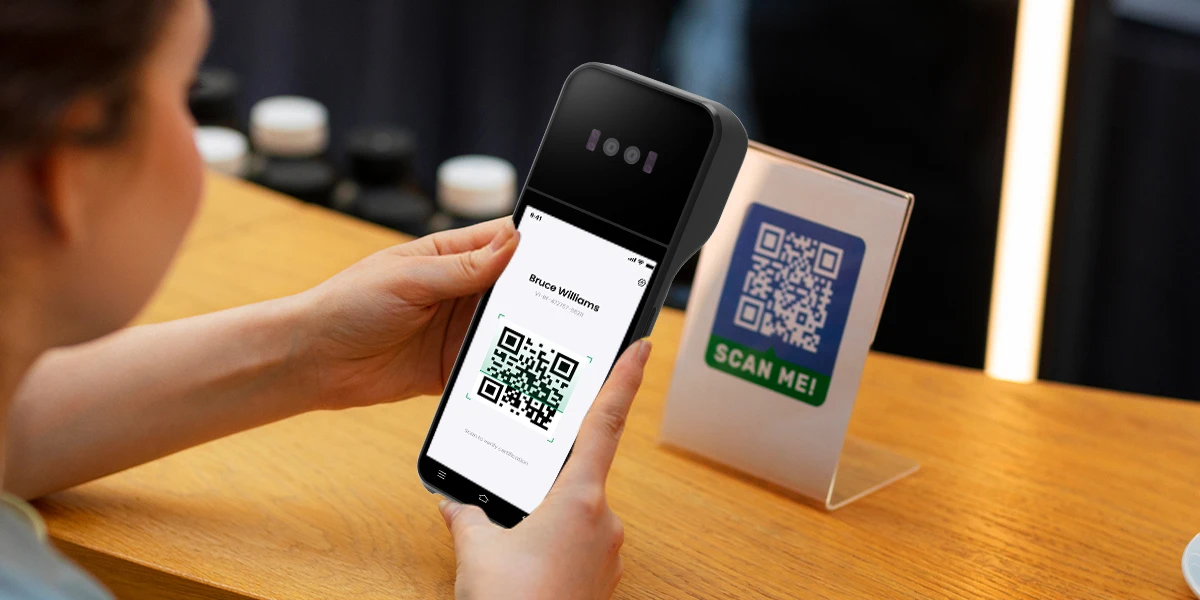
A POS barcode scanner reads the value encoded inside a barcode symbol. The value may be a product identifier such as a GTIN, an internal stock code, a coupon number, a serial number or a URL. The scanner does not understand the product in the same way the merchant's database does.
Most retail product barcodes do not directly contain the current shelf price. GS1 explains that the barcode generally represents a number that identifies the item, while the product description and price are retrieved from a computer database. Specialist variable-measure and coupon systems can be exceptions, but they do not change the normal product-lookup model. GS1's price and description guidance states this distinction directly.
The scanner output is therefore closer to a typed identifier than a complete product record. A basic USB scanner can behave like a keyboard: it sends the decoded characters and may add an Enter command. The POS application receives the value in the active field and decides what to do next.
A beep normally means decoding succeeded. It does not prove that the code belongs to a saleable product, that the correct store price exists, that the item is in stock or that the POS accepted the scan. Screen feedback remains essential.
The POS software turns a decoded identifier into a sellable order line. The complete chain contains several decisions after the light, laser or camera captures the symbol.
The complete mechanism can be summarized in one sentence.
A POS barcode scanner converts a visible symbol into an identifier; the POS application converts that identifier into a business action. Product description, price, tax and stock status normally come from the merchant's catalog after the scan, not from the scanner itself.
That is why the same physical scanner can serve different applications without knowing their product databases.
A missing item is usually a lookup problem after decoding. The cashier may hear the scanner beep, but the product catalog lacks the code, the store has not received the latest catalog, or the application is searching the wrong identifier field. Repeated scanning will not repair the missing record.
An incorrect item can result from bad data even when the scan is accurate. A reused internal code, incorrect product mapping or wrong price in the catalog can produce a clean scan and the wrong sale line. Merchants should investigate both the encoded value and the database record.
A 1D barcode represents data across a single horizontal sequence of bars and spaces. Common retail examples include EAN-13, EAN-8, UPC-A and UPC-E. Other linear formats, such as Code 128, appear in logistics, inventory and internal labeling.
A traditional laser scanner is designed mainly for linear symbols. It sweeps a line of light across the barcode and measures the reflected pattern. The symbol normally needs to cross the scan line at a usable angle, although multi-line desktop scanners create several scan paths to make positioning easier.
A linear imager can also read 1D codes. Instead of relying on a laser reflection pattern, it captures a narrow digital image and decodes the bars. “1D scanner” therefore describes supported symbols more clearly than it describes one physical technology.
GS1 notes that EAN and UPC barcodes are commonly used for items sold at retail point of sale. Those symbols usually encode a product identifier that the POS can match to its catalog.
1D codes suit simple identification. They are widely recognized, fast to scan and supported by established retail systems. Their practical limits include the physical width required for more characters and the smaller amount of structured data they can carry compared with 2D symbols.
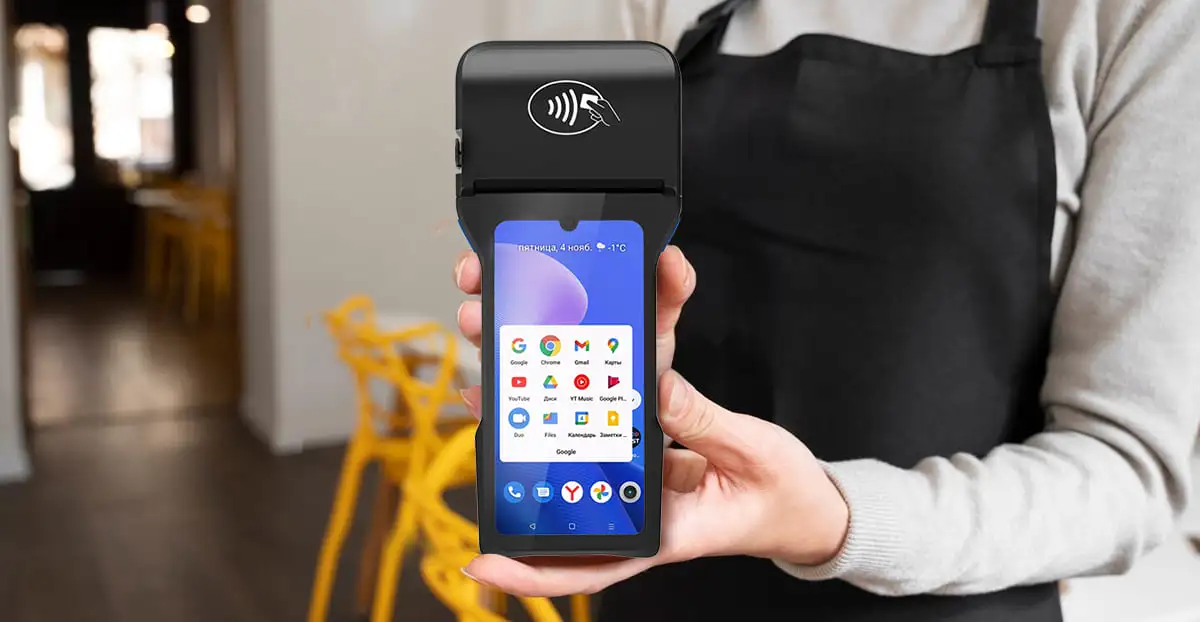
A 2D barcode reads data arranged across both horizontal and vertical dimensions. QR Code, Data Matrix, PDF417 and Aztec are examples. The symbol may use squares, dots or other two-dimensional patterns rather than one row of bars.
A 2D-capable scanner normally uses an area imager or camera. It captures a picture of the full symbol and software locates and decodes the pattern. The scanner can often read the code from several orientations because it is not waiting for one horizontal scan line to cross the bars.
2D symbols can carry more or richer data. Depending on the standard and use case, a code can include an identifier, batch or lot number, expiration date, serial number, web address or payment-specific data. A larger capacity does not mean every POS knows how to use every field.
The checkout application must understand the encoded format. A scanner can return a complete data string while the POS recognizes only the product identifier. Software readiness matters as much as optical decoding when retailers add 2D barcodes.
GS1's current 2D barcode retail guideline explains that retail systems may process a GTIN plus attributes such as lot, batch or expiration data. The guideline also describes scanner modes intended to avoid reading both a linear and 2D symbol on the same pack as two separate products.
A 2D scanner usually reads common 1D symbols as well, but support must be checked by format. “2D scanner” is not a promise that every proprietary, damaged or unusually encoded symbol will decode. The supported symbology list is the useful specification.
Camera scanning describes the capture method, while 1D and 2D describe the barcode structure. The three terms are not equal alternatives. A camera can read supported 1D and 2D codes, and a dedicated area imager is itself a camera-based scanning device optimized for barcode work.
| Term | What it describes | Typical capability | Main limitation to check |
|---|---|---|---|
| 1D barcode | A linear symbol format | Product identifiers in UPC, EAN and other linear codes | Cannot carry the same data density as many 2D formats |
| 2D barcode | A two-dimensional symbol format | QR, Data Matrix, PDF417 and other matrix or stacked codes | POS software may not understand every encoded field |
| Laser scanner | A capture technology | Fast reading of supported 1D codes | Usually cannot decode 2D symbols or phone-screen QR codes |
| Linear imager | A narrow image sensor | Supported 1D codes, sometimes from screens depending on design | Orientation and screen performance vary |
| Area imager | A full-image capture device | Supported 1D and 2D codes in multiple orientations | Quality, focus and supported formats differ by model |
| General device camera | A phone, tablet or POS camera plus decoding software | Supported 1D and 2D codes when image quality is sufficient | Focus, lighting, motion and application design affect speed |
A dedicated area imager is usually designed for repeated scanning. It may include aiming illumination, a physical trigger, wide-angle optics and firmware tuned for damaged or moving codes. A general POS camera can perform the same basic decode task but may require the operator to frame the symbol on screen.
A device camera does not require a network merely to recognize a barcode. Google's official ML Kit barcode scanning documentation describes on-device reading for common linear formats and QR Code, Data Matrix, PDF417 and Aztec. The actual POS application still needs local or online access to whatever database or service uses the returned value.
Camera quality alone does not determine scanning quality. Autofocus, exposure, lighting, lens distance, code size, motion, screen glare and decoder software all matter. A high-megapixel camera can perform poorly when the application cannot focus quickly at checkout distance.
The operator experience also changes with the capture method. A dedicated scanner can remain ready and return a value after one trigger press. A camera workflow may open a preview, wait for focus, locate the symbol and then close or reset the view. Occasional use can tolerate those steps; a busy checkout should measure the complete scan-to-item time.
Developers need more detail than merchants. Scanner triggers, callbacks, permissions, error states and lifecycle behavior belong in the POS SDK integration guide. This article stays at the operational level: the merchant should confirm that the chosen device reads the codes used in the real workflow.
No POS barcode scanner can be assumed to read every printed or on-screen code. Compatibility depends on the symbol type, scanner hardware, enabled formats, firmware, image quality and application rules.
The buyer should verify:
Phone-screen scanning deserves a separate test. A scanner that reads printed QR codes may struggle with screen brightness, reflections, refresh behavior or a cracked display. The test should use the actual wallet, loyalty or ticket application expected at checkout.
Multiple codes on one package can create ambiguity. A product may carry a retail barcode, logistics code, promotional QR code and recycling mark. The scanner and POS should prioritize the intended symbol rather than send the first readable code without context.
Product scanning and payment scanning use similar optics but different business flows. Both can start by decoding visible data. The next system that receives the value determines whether the result becomes an order line or a financial transaction.
| Step | Product barcode | Payment QR code |
|---|---|---|
| What is captured | Product identifier and sometimes product attributes | Payment-specific merchant, customer or transaction data |
| Where the data goes | POS product catalog or inventory service | Payment application, wallet or payment provider |
| Main result | Item description and price added to the order | Payment request, authorization or confirmation |
| Proof of success | Correct item appears in the basket | Provider returns an accepted payment status |
| Common error | Item not found or wrong product mapping | Invalid, expired, unsupported or unresolved payment request |
A product barcode tells the POS what is being sold. The application looks up the identifier, returns the product record and adds the price according to the merchant's rules. No bank or wallet needs to approve that lookup.
A payment QR code starts or identifies a payment flow. EMVCo explains that a merchant-presented payment QR communicates structured, payment-specific data from the merchant to the consumer to initiate a transaction. The EMV QR Code specification overview also distinguishes payment QR data from a general-purpose web URL.
A scanner that can read QR images is not automatically ready for QR payments. The POS needs a supported payment application, provider connection, merchant setup, transaction-state handling and reconciliation process. The decoded text alone cannot approve the payment.
Merchant-presented and customer-presented QR flows reverse who scans. In merchant-presented mode, the POS or printed sign shows a code and the customer scans it. In customer-presented mode, the customer's wallet shows a code and the merchant device scans it. Both require a provider result before the order is marked paid.
The order should remain unpaid when the payment status is unresolved. A successful image decode, wallet animation or customer screenshot cannot replace the merchant's provider response. The POS should preserve the transaction reference and use the supported status or reconciliation process before staff retry, cancel or release the goods.
The broader POS QR payment guide covers payment integration in more detail. The critical boundary here is simple: image recognition finds the code; the payment service determines the financial result.
A failed scan usually comes from the symbol, viewing conditions, scanner capability or software configuration. The quickest diagnosis starts by finding which stage failed.
| Symptom | Likely area | First check |
|---|---|---|
| No light, aiming pattern or camera view | Device or power | Connection, battery, trigger and application permission |
| Scanner sees the code but never beeps | Decode stage | Supported format, focus, contrast, size and damage |
| Scanner beeps but no characters appear | Connection or active field | USB/Bluetooth state, input mode and POS focus |
| Characters appear but item is not found | Catalog lookup | Exact decoded value and product mapping |
| Wrong item appears | Data quality | Duplicate, reused or incorrectly assigned code |
| Printed code works but phone code fails | Optical/screen behavior | Brightness, glare, distance and screen-reading support |
| QR decodes but payment remains pending | Payment flow | Provider status and transaction reference |
Dirty labels and poor printing reduce contrast. Wrinkles, missing bars, reflective film, low ink density and curved packaging can prevent a complete image. The operator should try another undamaged example before changing software settings.
The scanner configuration can disable a valid format. Retailers sometimes enable only expected barcode families to reduce false reads. A new supplier label may therefore need a planned configuration change even when the hardware can technically read it.
Repeated beeping can create duplicate quantities. The POS should define whether rapid repeated scans add more units, ignore duplicates for a short period or require staff confirmation. The correct behavior depends on whether the workflow is retail quantity entry, ticket validation or unique-serial capture.
The right scanner is the one that reads the merchant's real codes at the required checkout speed. The choice should begin with samples, not with a generic claim such as “supports QR.”
A 1D scanner can be sufficient for a shop that uses standard UPC or EAN product labels and does not need QR or Data Matrix. A simple device can reduce cost and training. The merchant should still test damaged labels and its preferred connection.
An area imager is the practical choice when the store scans QR codes, Data Matrix, loyalty codes, electronic tickets or wallet codes from screens. The test should include both product and non-product codes so the POS routes each value correctly.
A built-in POS camera can suit lower-volume or mobile work. It reduces the number of peripherals and can handle several code formats through software. The tradeoff can be slower aiming, more sensitivity to lighting and greater dependence on application design.
A dedicated scan engine suits workers who scan continuously. A physical trigger, faster aiming and an ergonomic grip can matter more than an impressive camera specification. Warehouse and inventory use may also require drop resistance and longer read distance beyond ordinary checkout needs.
The final test should cover the complete item-entry chain. The merchant should scan real packaging, confirm the correct product and price, change quantity, process an unknown code and verify recovery after disconnecting the scanner. A fast beep without a correct order line is not a passed test.

A POS barcode scanner is an input device that reads a barcode, decodes it into characters and sends the result to POS software. The software then interprets the value, looks up the product or other record and performs the relevant action.
A normal retail product barcode usually identifies the item rather than storing its current price. The POS uses the identifier to retrieve the description and price from the merchant's database. Variable-measure products and coupons can use specialized rules.
A 1D scanner reads linear barcodes made from bars and spaces, while a 2D-capable scanner reads matrix or stacked symbols such as QR Code and Data Matrix. Many 2D area imagers also support common 1D formats.
Camera scanning is a capture method, not a barcode category. A camera or area imager can read supported 1D and 2D symbols. Its real capability depends on optics, focus, decoding software and enabled formats.
A POS scanner can read phone QR codes when it supports the symbol and screen-scanning conditions. Area imagers and cameras are normally better suited than traditional laser scanners. The merchant should test actual phone brightness, glare, app layout and scanning distance.
The same imaging hardware may decode both, but the POS must route them to different workflows. Product codes query the catalog. Payment QR codes require a supported payment application, provider connection and confirmed transaction result.
The beep means the symbol was decoded, while “item not found” means the POS could not match the value to a product record. Check the decoded number, catalog mapping, store data synchronization and whether the application searched the correct identifier field.
No. Supported formats, encoding modes, image quality, firmware and application rules vary. The buyer should test the exact QR codes, sizes, surfaces and phone screens used in the intended workflow.
A POS barcode scanner reads an identifier; the POS software turns that identifier into an order action. The scanner captures and decodes the symbol, then the product catalog supplies the description, price, tax and other business data.
The clearest comparison separates barcode structure from capture technology. 1D and 2D describe the symbol. Laser, linear imager, area imager and camera describe how the device sees it. A camera-based scanner can read both 1D and 2D codes when the optics and software support them.
Product codes and payment codes must remain separate in the checkout design. Reading a QR image proves only that the code was decoded. A product lookup still needs the catalog, and a payment still needs the provider's confirmed result.






 Home
 How Dual-Screen POS Terminals Show Orders to Staff and Customers?

