2026-11-02 Author : ZCS
Dual-screen POS terminals make one checkout easier for two people to follow. The cashier works with products, quantities, discounts and payment controls, while the customer can review the information that matters to the purchase. The broader dual display Android POS guide covers the category and common business uses; this article explains what happens on the two screens.
The basic design is easier to understand when each screen is treated as a separate work area.
A dual-screen POS terminal is one checkout device with an operator display and a customer-facing display. The POS application controls what each display shows. Depending on the hardware and software configuration, the second screen can copy the operator view, show a separate order view or accept limited customer input.
That definition separates the physical screens from the software behavior running on them.
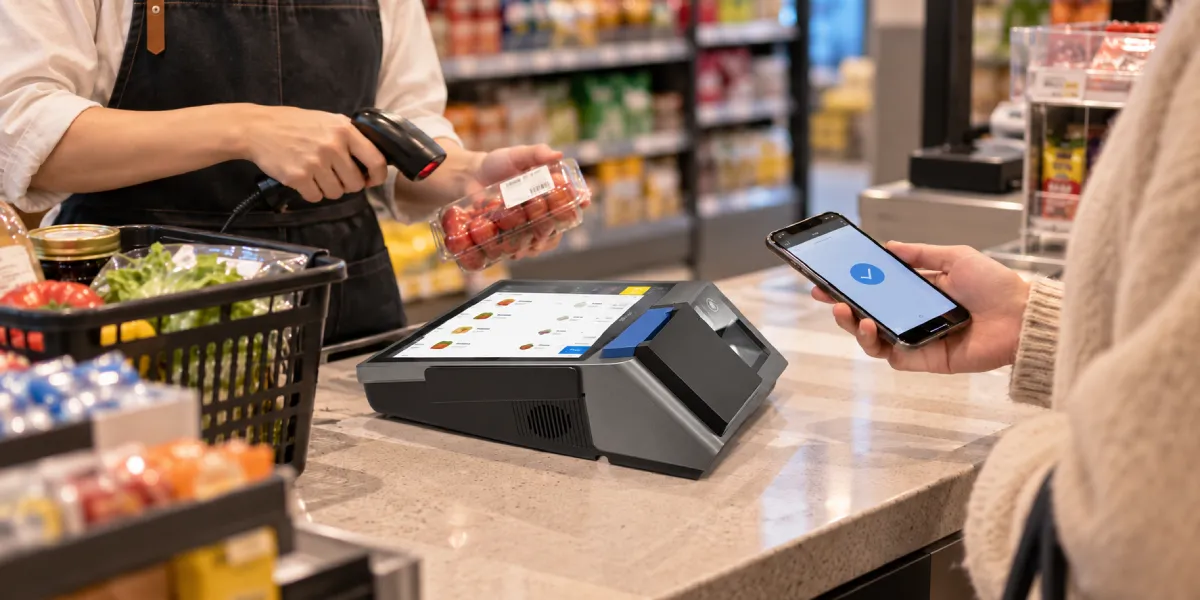
The main screen belongs to the cashier or service worker. It normally contains the product catalog, search, quantities, modifiers, discounts, customer lookup, staff permissions and payment choices. These controls help an employee complete the sale, but most of them do not need to be visible to the customer.
The second screen faces the customer. Its simplest job is to show product names, quantities, prices, discounts, tax and the running total. The customer can check the order while the cashier is still building it instead of discovering an error after the receipt prints.
| Transaction stage | Cashier screen | Customer screen |
|---|---|---|
| Idle | Sign-in, open register or product menu | Welcome message or neutral store content |
| Item entry | Product buttons, search, quantity and modifiers | Items, quantities, prices and running total |
| Order review | Discount, tax and payment controls | Final basket and amount due |
| Payment | Tender choice and transaction status | Amount, QR code or instruction to use a payment terminal |
| Result | Approved, declined, retry or receipt controls | Simple approved, declined or completed message |
The information split protects attention as well as privacy. A cashier may need stock notes, supervisor prompts or error messages that would confuse a shopper. A well-designed customer view removes those controls and shows only the order and the next useful action.
The screen direction matters as much as the screen count. A second display that faces the cashier does not create a customer-facing checkout. The counter position, viewing angle, text size and glare should let the shopper read the order without leaning across the register.
The POS application updates the customer display after the basket changes. A barcode scanner usually sends a product code to the POS software. The software finds the product, adds it to the order, calculates the new total and then redraws the information shown to the customer.
The data path can be described without development jargon:
The two screens do not calculate separate totals. The sale should have one basket and one authoritative amount. The cashier screen and customer screen present that shared state in different layouts. This prevents one screen from showing an old total while the other shows a new one.
The update mechanism is the most important part of the dual-screen workflow.
A dual-screen POS application keeps one order state and renders it on two displays. When a product, quantity, discount or tax changes, the application updates the customer view from that same order. The second screen is therefore a presentation of the sale, not a separate cash register.
That single-source approach is what makes real-time order checking useful.
A delay or frozen customer screen is a software-state problem, a display problem or both. The POS should define what happens when the second display disconnects, the application restarts or a large basket takes longer to draw. The cashier needs a visible warning if the customer is no longer seeing the current order.
Android provides a standard concept for presenting content on another display. The official Android Presentation reference describes a presentation as content associated with a target display and notes that the second display has its own size and resource context. Device makers and POS developers still need to implement and test the actual checkout behavior.
Dual-screen POS terminals can use mirrored or independent display modes. Mirrored mode copies the same image to both panels. Independent mode lets the cashier and customer see different layouts based on the same transaction.
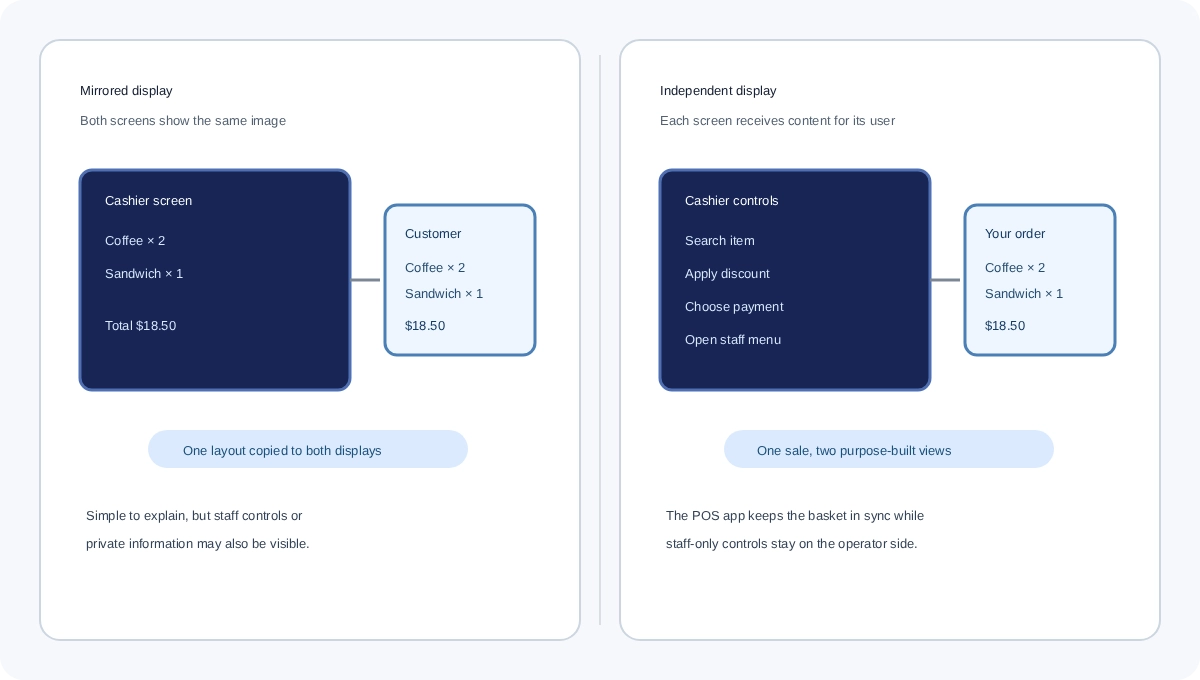
Mirrored mode sends one screen image to both displays. The setup is simple, but the customer may see staff controls, product search results, internal notes or buttons that have no customer purpose. Mirroring works best when the original layout was already designed to be public.
Mirroring does not automatically make both screens touch-enabled. A customer panel can display the copied image without sending touch input back to the application. The hardware specification must state whether the second panel supports touch.
Independent mode gives the customer a purpose-built view. The operator can continue using product and staff controls while the second display shows only the basket, amount, QR code, loyalty prompt or payment result.
Independent content usually provides the cleaner checkout experience. Staff-only information stays on the operator side, and the customer interface can use larger text and fewer choices. The software work is greater because the application must maintain the second layout and keep it synchronized.
Some deployments use one application for the cashier and another for the customer display. The two applications then need a reliable way to exchange the order and customer response. This design can support richer interaction, but it also creates more update, recovery and testing work.
Screen count does not prove display mode. A product photograph can show two panels without revealing whether they mirror, extend or accept separate input. Buyers who need a particular behavior should request a working demonstration on the exact hardware and POS application. The dual-screen POS specification checklist turns those differences into sample tests and purchasing requirements.
Customers can interact with the second screen only when the hardware and software both support it. A touch panel supplies the physical input. The POS application decides what the tap means, whether the action is allowed and how the cashier side responds.
Common customer actions include:
A non-touch display can still be useful. Order review, amount display, payment instructions and QR presentation do not always require the customer to tap the screen. Removing touch can also simplify cleaning, input handling and software testing for a small display.
Interactive workflows need a clear finish and cancel state. A customer who starts a loyalty sign-up and walks away should not block the next sale. A timeout should return both displays to a known state without carrying the previous customer's details into the next transaction.
Both screens may receive input at nearly the same time. The application should prevent a customer tap from opening a cashier control or moving focus away from an important staff field. Android's current connected-display guidance also notes that display changes can affect window size and application configuration, which is why real hardware testing matters.
Touch capability does not equal secure PIN entry. An ordinary Android customer touchscreen should not collect a card PIN unless the complete device and payment design are approved for that protected function. Order confirmation, loyalty entry and payment credential entry belong to different security levels.
The customer display communicates the payment step but does not necessarily process it. It can show the amount due, a payment QR code, an instruction to tap or insert a card, a progress message and the final result. The actual payment may be handled inside the POS device or by a separate certified terminal.
The distinction can be stated directly.
A customer-facing display presents payment information; the approved payment component authorizes the transaction. Showing an amount, QR code or “approved” message does not make the display a payment processor. Payment acceptance depends on the configured reader, payment application, provider connection and merchant account.
That boundary prevents a visible screen function from being confused with a financial service.
The customer display should show the final payable amount before payment begins. The amount should match the value sent to the payment component. A last-second discount or quantity change must update both the order view and payment request.
A second screen can present a merchant-generated payment QR code. The customer scans it with an appropriate wallet or banking application. The POS still needs a confirmed payment result from the provider before marking the order paid; a scanned code is not proof of settlement.
The customer screen should translate payment status into a short message. Approved, declined, cancelled, pending and unknown are different states. A timeout should not be changed into “declined” merely to give the screen a final-looking answer.
Dual-screen hardware appears in three purchasing arrangements. The arrangement changes who supplies payment acceptance, software and support even when the counter looks similar.
| Purchasing arrangement | What the customer display may do | What the buyer must verify |
|---|---|---|
| Integrated Payment POS | Shows the basket and works within a packaged payment service | Supported payments, merchant onboarding and service terms |
| Uncertified White-Label POS | May show orders, but payment claims lack verified evidence | Product-level approvals and whether payment use is permitted |
| Pure-Hardware ODM/OEM POS | Runs a buyer-controlled POS and customer-display application | Software integration, payment-provider support and project ownership |
Pure-Hardware ODM/OEM POS gives an integrator more control and more responsibility. The buyer can define the customer experience, but hardware capability alone does not provide acquiring approval. PCI SSC's small merchant payment guide similarly distinguishes integrated payment terminals from other payment-system components and explains why the complete payment path matters.
The deployment agreement should name the owner of each layer. The hardware supplier can provide the displays and device interfaces, the POS developer can control the basket views, and the payment provider can return the financial result. Store staff then need one support path that does not leave them deciding which company owns a failed screen, an incorrect total or an unresolved payment.
ZCS offers dual-screen hardware in portable and fixed-counter forms. The local product documents identify Z108, Z100 and Z108P as models that can support the same or different content on the two displays. The deployed POS application still has to implement the chosen mode.
The ZCS Z108 dual-screen POS combines an 8-inch, 800 × 1280 main touchscreen with a 3.95-inch or 2.6-inch, 480 × 480 customer-display option. Customer-side touch is optional according to the manufacturer parameter document.
The Z108 customer screen is best treated as a compact confirmation area. Amounts, short order summaries, QR codes and status messages suit its size more naturally than a full product catalog. A touch configuration can support limited choices, but the actual interface should be tested for readable text and usable touch targets.
The Z108 also offers 58 mm or 80 mm printer configurations and several physical interfaces. The documented ports include USB Type-A, RJ11 serial, RJ12 cash drawer and RJ45 Ethernet. These are manufacturer-stated options, so the quotation and production sample should identify the exact configuration.
The ZCS Z100 desktop POS uses a 10.1-inch operator display and a separate customer-facing display in a fixed-counter design. The product family supports same-screen or different-screen presentation according to the local model-selection document.
The Z100 suits a counter that needs more operator space and peripheral connections. The manufacturer parameter document lists 58 mm or optional 80 mm printing, four USB Type-A ports, USB Type-C, RJ11, RJ12 and RJ45. Those connections can support a scanner, cash drawer or networked checkout design when the electrical and software requirements match.
Neither ZCS model determines the customer workflow by itself. Z108 and Z100 provide the two-display hardware platform. The integrator or POS software provider must decide what appears on each screen, how basket changes are synchronized, whether touch is enabled and how payment results return to the sale.
A small shop needs a second screen when customer verification solves a repeated checkout problem. A café with modifiers, a convenience store with rapid scanning or a boutique with discounts may benefit because the customer can check the order before paying.
A small shop does not need two screens merely because the hardware looks modern. A single-screen tablet may be enough when the basket is short, the operator turns the screen toward the customer and counter space is limited. A separate payment terminal can still show the payable amount.
| Small-shop situation | Dual screen is more useful when | A single screen may be enough when |
|---|---|---|
| Café or bakery | Customers need to confirm sizes, add-ons and takeaway items | Orders contain one or two simple items |
| Convenience store | Rapid scanning makes item and price checking difficult | The customer can easily see an existing price display |
| Boutique | Discounts, variants and loyalty details need confirmation | Transactions are infrequent and staff can review verbally |
| Service counter | Customers choose options or scan a payment QR | The screen only records a simple fixed-price service |
| Very small counter | A compact customer display fits the layout | The second panel blocks products, cables or staff movement |
The decision should start with one observable customer task. “Show every scanned item,” “confirm the order before payment” and “display a QR code without turning the cashier screen” are testable requirements. “Improve engagement” is too broad to justify hardware.
The second screen should not be justified with an automatic sales promise. Promotions and loyalty prompts may support a merchant's strategy, but results depend on the offer, software, store type and customer behavior. The clearest operational value is often simpler: both people can see the same sale without sharing one screen.
The business fit guide for dual-screen POS provides more industry examples. A small merchant should still judge the hardware against its own order complexity, counter layout and software support.

A working checkout test is more useful than a photograph or screen-size list. The buyer should use the intended POS application, real products and realistic payment states on the exact hardware configuration.
Test these points:
The acceptance result should name the exact display behavior. “Dual screen supported” is not enough. A useful record says whether the customer panel mirrors or shows independent content, whether touch is present, which application version was tested and what happens after a disconnect.
A dual-screen POS terminal is one checkout device with a staff-facing display and a customer-facing display. The staff screen contains operating controls, while the customer screen can show items, totals, payment instructions and transaction results.
The POS application updates the customer display whenever the order changes. A scan or button press changes the basket, the software calculates the new state and the customer view redraws from the same order information.
Same-screen display mirrors one image on both panels, while different-screen display gives each user a separate layout. Independent content can keep cashier controls private and show the customer a simpler order view.
The customer can use the second screen only when it has touch hardware and the POS application supports customer input. Touch may be used for confirmation, loyalty, language, receipt choice or other limited tasks defined by the software.
The display can present payment information without processing the transaction. Payment approval depends on the configured payment reader, application, provider and merchant account. A QR code or approved message is a visible part of the flow, not proof that the screen itself authorized payment.
A dual-screen POS is worth considering when customers regularly need to verify items, modifiers, discounts or the amount due. A single screen may be sufficient for simple fixed-price sales, very small counters or software that cannot control a second display.
ZCS identifies Z108, Z100 and Z108P as dual-screen products that support same-screen or different-screen display configurations. The exact customer-screen option and touch capability vary by model, and the POS application must implement and test the required behavior.
Dual-screen POS terminals work by presenting one sale through two user-specific views. The cashier controls the transaction on the main display, and the customer display follows the basket, amount and payment state through the POS application.
The most important buying question is not “Does it have two screens?” The useful question is whether the exact hardware and software can mirror, show independent content or accept customer input in the way the store needs. A small shop should choose two screens for a defined confirmation task, not for an unsupported promise of higher sales.
ZCS Z108 and Z100 illustrate two practical form factors. Z108 provides a compact portable/countertop design with a small customer display, while Z100 provides a larger fixed-counter operator station. Both still depend on the integrator's POS application and payment arrangement to turn two panels into a reliable checkout workflow.






 Home
 How to Replace Payment Terminals Across Stores with Pilot Testing and Recovery Plans?

