
2026-11-19 Author : ZCS
The fastest way to fix Apple Pay is to identify the exact point where the payment stops. A Wallet card that will not activate, a side button that will not open Wallet, a terminal that does not react and a bank decline are four different problems. Restarting the iPhone or deleting every card before making that distinction can add work without fixing the cause.
Apple Pay troubleshooting works best as a sequence of controlled checks.
Apple Pay failures fall into four layers: device readiness, Wallet card provisioning, short-range NFC communication and payment authorization. Device settings control Wallet access; the card issuer controls card eligibility and declines; the merchant’s contactless terminal and payment provider control in-store acceptance.
The checks below start with the visible symptom and change one variable at a time.
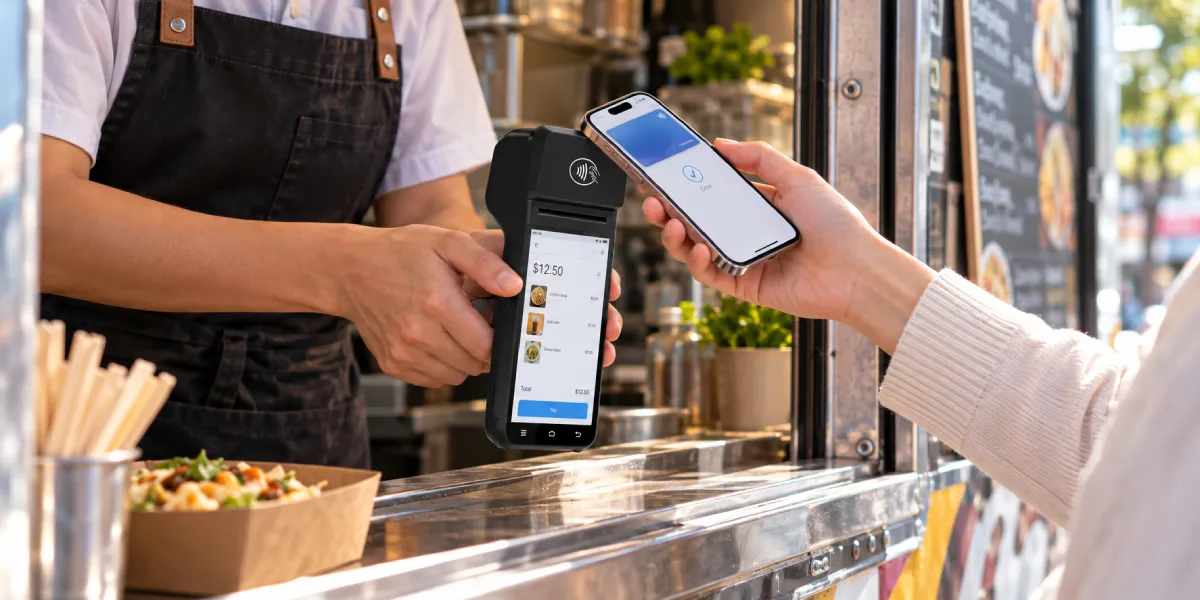
The message or behavior on screen identifies which part of Apple Pay needs attention. Do not treat every failed tap as an NFC fault.
| What happens | Most likely layer | First useful check |
|---|---|---|
| A card cannot be added to Wallet | Device eligibility, account setup or card issuer | Confirm device, region, passcode, two-factor authentication and issuer support |
| Double-clicking does not open Wallet | Button setting, default contactless app or device behavior | Open Wallet manually and select the card |
| Wallet opens, but the reader does not react | Positioning, terminal readiness or NFC communication | Hold the top of the iPhone at the contactless symbol and try again |
| The reader reacts, then shows declined | Card issuer, payment network or merchant acceptance | Try another Wallet card and contact the issuer if only one card fails |
| Apple Pay works in one store but not another | Merchant terminal, card network acceptance or acquiring setup | Ask the merchant to retry contactless or use another terminal |
| Apple Pay works in stores but not online | Website, app, browser or checkout data | Check for the Apple Pay button and review billing, shipping and contact details |
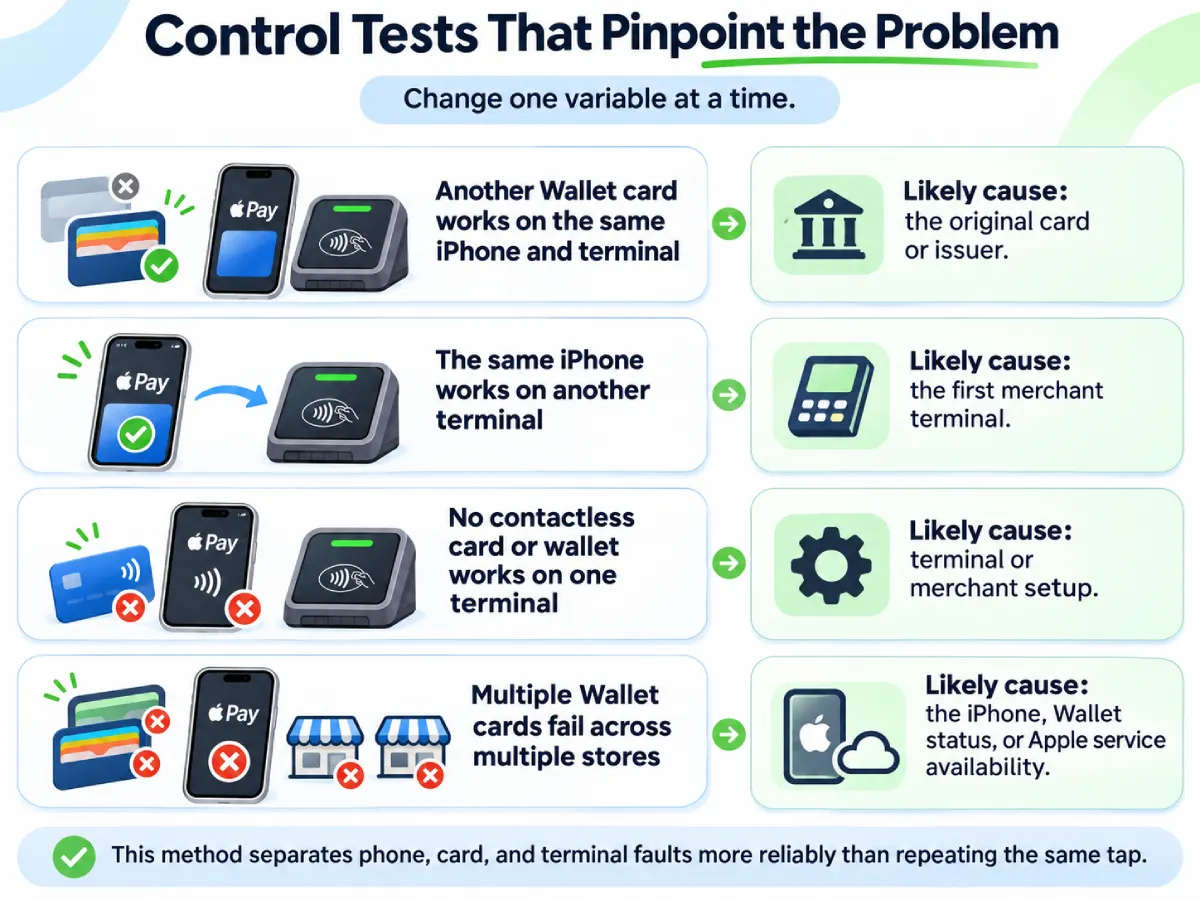
A single test should answer one question. Trying another card on the same iPhone tests the card path. Trying the same iPhone at another store tests the original merchant terminal. Trying another contactless wallet or card at the same terminal tests whether the reader is accepting contactless payments at all.
This method is more reliable than repeating the same tap because it separates phone, card and terminal faults.
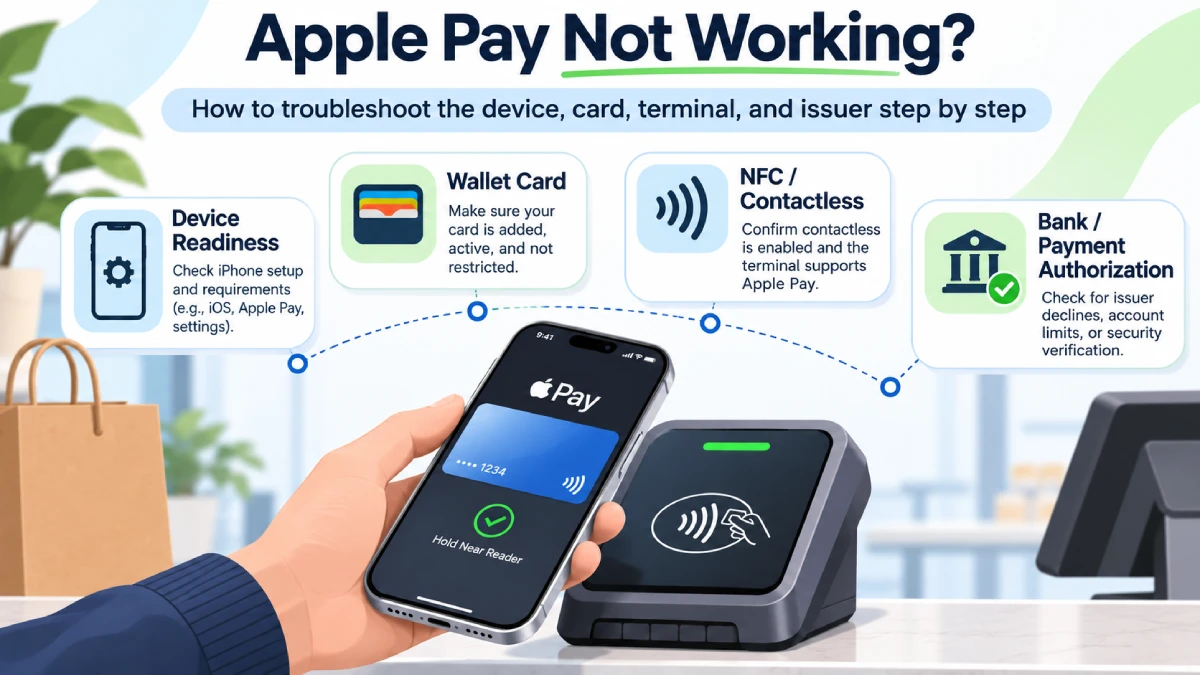
Apple Pay requires an eligible device, a supported country or region, an Apple Account and a device authentication method. Face ID, Touch ID or a passcode must be available before a normal Wallet payment can be authorized.
Apple Support’s current Apple Pay setup requirements also call for a supported card from a participating issuer and the latest available operating-system version. A card that works physically does not automatically qualify for Apple Pay because the issuer decides which cards and account types it supports.
Check these items in order:
An iPhone does not provide a normal on/off NFC switch for Apple Pay. The Wallet payment process activates the contactless interface when the user selects a card and authenticates. Advice that tells an iPhone user to enable NFC in a quick-settings panel is usually copied from Android troubleshooting and does not apply.
The underlying NFC technology in phones only handles the close-range exchange. Wallet access, card credentials and issuer authorization remain separate layers.
Opening Wallet manually separates a side-button problem from a payment problem. Open the Wallet app, select the intended card and authenticate. A card that works this way is still usable even when the double-click shortcut does not behave as expected.
Check Settings > Wallet & Apple Pay for the double-click setting. In markets where iPhone allows another default contactless app, selecting that app changes what opens automatically near a reader or after a side-button double-click. Apple Wallet must be selected as the default for the usual Apple Pay shortcut behavior, or Wallet must be opened manually.
A restart is useful for a temporary Wallet or button problem, but it cannot remove an issuer block or enable a merchant terminal. Restart the iPhone after confirming the settings above. Test the same card once after the restart before changing anything else.
Use a second Wallet card for the next test when one is available. That result will reveal more than repeated restarts.
A card-addition failure occurs before the iPhone can make an Apple Pay payment. The issuer must approve the card for provisioning, and the device must satisfy Apple Pay’s account and security requirements.
Apple Support updated its card-addition troubleshooting guidance in October 2026. The documented checks include issuer support, compatible hardware, the latest operating system, a passcode or biometric method, a supported region, two-factor authentication and current service availability.
Messages such as Could Not Add Card, Invalid Card or Card Device Limit need different responses:
The bank is the correct contact when Wallet directs the user to the card issuer. Apple does not approve the underlying credit or debit account. The issuer can confirm whether that card product, account status and device enrollment are eligible.
Do not repeatedly remove and add the card while issuer verification is pending. Repeated provisioning attempts can create more verification prompts without resolving the original restriction.
A silent reader usually points to positioning, payment preparation or terminal readiness rather than a bank decline. The phone and terminal must first establish the short-range contactless exchange.
Apple’s in-store payment instructions specify three actions for Face ID models: double-click the side button, authenticate, then hold the top of the iPhone near the reader until Done or a checkmark appears. Touch ID models use the Home button and fingerprint before the same close-range presentation.
Use this sequence:
The contactless symbol shows where the payment device should be presented, but it does not prove that contactless acceptance is currently enabled. A terminal can display the symbol while its contactless function, payment application or acquiring configuration is unavailable.
A contactless card reader exchanges payment data with the iPhone. The terminal’s payment application and merchant provider must then route the transaction. A silent tap and a displayed decline therefore indicate different stages of failure.
A control payment shows whether the terminal is detecting any contactless credential. Ask the merchant to test another contactless card or wallet, or move the transaction to a second terminal.
The results narrow the fault quickly:
This comparison avoids blaming the phone when the terminal never entered contactless mode.
A decline means the payment path progressed farther than a silent tap. The terminal received payment data and a merchant, processor, network or issuer decision stopped the transaction.
Open Wallet, select the card and check Card Details for a warning such as This Card Cannot Be Used. Confirm that the physical card is active, the account is in good standing and the issuer has not replaced or suspended the card.
Apple’s guidance for a declined Apple Pay card directs the user to verify issuer support and contact the bank or card issuer. The merchant and Apple cannot see every issuer risk rule, balance restriction or card-account block.
Use a different Wallet card before changing the iPhone setup. One card working and another failing on the same phone and terminal is strong evidence that NFC hardware is working.
A physical card working does not rule out a Wallet-card problem. Apple Pay uses a provisioned device credential linked to the account. The issuer can suspend that credential while leaving the plastic card active, or require the card to be verified again after a replacement, account change or security review.
Apple Pay acceptance depends on the merchant’s terminal, enabled payment networks and payment provider. Apple Pay does not bypass the merchant’s normal card-processing path.
The failure pattern separates the responsible layer more clearly than a generic “not working” report.
One Apple Pay card failing while another succeeds on the same iPhone and terminal points to card or issuer status. Multiple Wallet cards failing on one terminal point to merchant acceptance. The same cards failing across unrelated merchants point back to the device, Wallet service or account.
This pattern gives the bank, merchant and device support team a specific result to investigate.
Apple’s merchant troubleshooting instructions use a clear isolation test. The merchant should ask the customer to present the iPhone near the EMV contactless symbol and then try a different Apple Pay card. One card working points to the failed card’s issuer. Neither card working points toward the terminal provider or merchant acceptance setup.
The merchant should check:
The iPhone can exchange payment data through NFC without mobile data or Wi-Fi, but the merchant still needs a usable authorization path. The distinction between phone connectivity and contactless terminal connectivity explains why a ready iPhone can still face a terminal timeout or network error.
A useful support ticket needs the terminal result, not the customer’s card details. Record the time, amount, terminal ID, store location, displayed error and whether another Wallet card or contactless card worked. Never photograph the customer’s full card information or ask for the Wallet device account number.
The terminal provider can use the terminal ID and transaction timestamp to find the attempt. The card issuer can use the customer’s account and time of purchase to locate an authorization decline.
Apple Pay working in a store does not prove that a website or app checkout is configured correctly. In-store payments use an NFC terminal. Online and in-app payments use an Apple Pay button, a payment sheet and the merchant’s e-commerce integration.
For an online failure, check whether the Apple Pay button appears, the correct card is selected and the billing, shipping and contact fields are valid. Try the merchant’s app or another supported browser only after confirming that the checkout officially offers Apple Pay.
The merchant owns button display, domain registration, certificates, payment processing and checkout error handling. A missing button across every eligible Apple device points toward merchant integration. A payment sheet that opens but rejects one card points toward the selected card, issuer or merchant acceptance rules.
In-store troubleshooting should not be mixed with online troubleshooting. Resetting NFC settings cannot repair an expired merchant certificate, and changing a shipping address cannot repair a silent contactless terminal.
Apple Watch has its own Wallet cards and payment state. Adding a card to an iPhone does not guarantee that the same card is active on the paired watch.
Open the Watch app on the paired iPhone, select Wallet & Apple Pay and confirm that the intended card appears without a warning. Apple Watch also needs a passcode, and removing the passcode removes payment cards from the watch.
To pay, double-click the watch’s side button, choose the card and hold the display near the contactless reader until the watch signals completion. Testing the iPhone and watch separately helps identify whether the problem belongs to one device enrollment or to the card and merchant path shared by both.
Removing a Wallet card should be a late troubleshooting step, not the first response to every decline. Re-adding requires issuer provisioning and may trigger verification again.
Remove and re-add the card when the issuer confirms that the account is eligible, the card shows a Wallet-specific error, or the issuer instructs the user to provision a new device credential. Do not remove the card when only one merchant terminal fails; that pattern points toward the store rather than Wallet enrollment.
Use this final order:
This order preserves a working card setup while producing evidence that Apple Support, the bank or the merchant provider can use.
The table below identifies the next owner based on the test result.
| Test result | Next action | Likely owner |
|---|---|---|
| Wallet will not open from the side button, but opens manually | Check Wallet settings and default contactless app | Device settings |
| Card cannot be added or verified | Confirm eligibility and contact issuer | Card issuer |
| Reader is silent at one terminal only | Retry positioning and change terminal | Merchant or terminal provider |
| One Wallet card fails but another works | Contact the failed card’s issuer | Card issuer |
| Every contactless method fails on one terminal | Check contactless configuration and connection | Merchant or payment provider |
| Apple Pay fails across cards, merchants and devices | Check Apple service status and account state | Apple service or account |
| Store payments work but website payments fail | Check button, checkout data and merchant integration | Website, app or payment provider |
A merchant setting up contactless acceptance for the first time needs a broader launch test than one Apple Pay transaction. The process for how to accept credit card payments covers provider onboarding, terminal preparation, live transaction checks and payout verification.

A physical card and its Apple Pay credential can have different statuses. The issuer may require Wallet verification, suspend the device credential or decline the tokenized transaction while the plastic card remains active. Try another Wallet card, then contact the original card issuer.
No separate Apple Pay NFC switch exists in normal iPhone settings. Select a Wallet card, authenticate and hold the top of the iPhone near the contactless reader. The payment process activates the NFC exchange.
Merchant acceptance varies by terminal, payment network and provider configuration. A store may have contactless hardware without active contactless acceptance, or it may not accept the network used by the selected Wallet card.
The iPhone uses NFC rather than Wi-Fi or cellular data to communicate with the store terminal. The terminal normally needs a working payment-processing connection to obtain authorization, so a store-side connection problem can still stop the purchase.
Contact the card issuer when one Wallet card fails and another succeeds. Contact the merchant or terminal provider when multiple Apple Pay cards fail on the same terminal. Contact Apple Support when Wallet or Apple Pay fails across eligible cards and merchants after device checks are complete.






 Home
 How NFC Technology Lets Android Devices Read Tags, Emulate Cards and Make Contactless Payments?

