
2026-06-12 Author : ZCS
Choosing a POS system with touch screen is one of the more consequential hardware decisions a retailer, restaurateur, or service operator makes — and the margin between a well-matched display and a poorly specified one shows up in every shift. A screen that responds slowly, registers phantom inputs, or washes out under ambient light does not just frustrate staff; it adds measurable friction to every transaction across the business day.
The global touch screen POS market was valued at approximately USD 17.45 billion in 2024 and is projected to reach USD 30.12 billion by 2032, growing at a compound annual rate of around 7%. That expansion reflects a widespread transition away from hardware conceived for a pre-cloud era — toward touch-native terminals that pair naturally with real-time inventory platforms, contactless payment infrastructure, and remote device management.
This guide covers what actually matters before a procurement decision: how screen technology shapes the checkout experience, what the capacitive versus resistive choice means for different operating environments, how size, resolution, and brightness translate into real-world performance, and what a complete hardware evaluation checklist looks like.
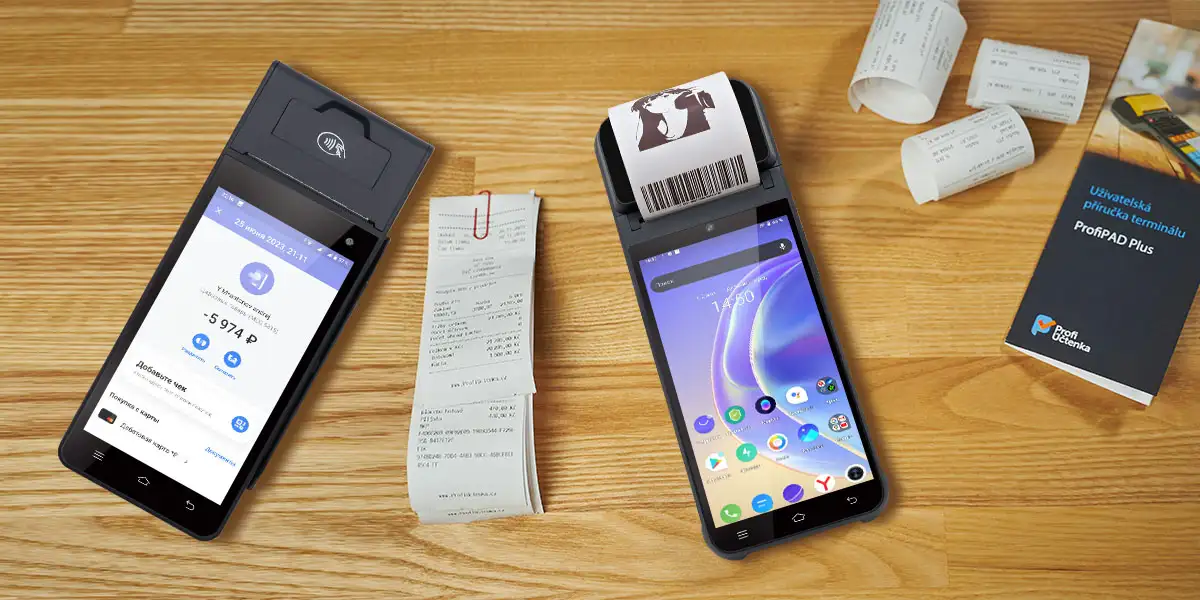
The standard description of a touch screen point of sale system focuses on the most obvious characteristic: input accepted directly through the display, without keyboard or mouse. That framing undersells the screen's operational significance. In a live retail or hospitality environment, the display is the primary interface between the cashier and the system — and every friction point in that interface compounds across hundreds of transactions per day.
Response latency is the first variable that determines whether a terminal feels professional. A capacitive screen that registers a tap within 3 to 5 milliseconds feels immediate, the way a smartphone does. A panel with 15-millisecond latency or worse creates a perceptible hesitation — one that forces the operator to pause and confirm input before proceeding to the next step. In a high-volume checkout environment, that half-second confirmation overhead accumulates. A cashier processing 200 transactions in a shift can lose nearly two minutes of throughput to latency alone, and the cognitive cost of verifying ambiguous taps contributes to the accuracy degradation that builds over a long service period.
False registrations — phantom touches triggered when a hand brushes the screen edge, or when debris briefly completes a circuit — are a related problem rarely captured in specification sheets. In a quick-service restaurant where operators are in constant motion, a single ghost input that opens the wrong menu item or triggers an unintended void requires a correction sequence that slows the line and introduces transactional error. Palm rejection quality, not just raw response speed, determines whether a display performs reliably under production conditions.
Display clarity affects both speed and error rate. A low-resolution panel renders menu items, pricing fields, and payment confirmation prompts less sharply, which forces the eye to work harder and the finger to aim more deliberately. At higher pixel densities, interface elements are legible at a glance — shortening the decision cycle per tap and reducing the fatigue that degrades performance across an extended shift. The screen is also the first element a customer encounters during payment confirmation, and display quality communicates something about the professionalism of the business itself.
The capacitive versus resistive distinction is frequently misread as a quality hierarchy. It is more accurately a contextual fit question. Both technologies are mature and reliable in their target applications; the decision should be driven by the operating environment, not by a generic preference for one over the other.
Capacitive panels detect the electrical field disruption caused by a bare fingertip contacting the glass surface. No pressure is required — a light touch registers as accurately as a firm press — and multi-touch gesture support is native. Response times fall in the 3 to 10 millisecond range, which is the specification bracket that produces the immediate, smartphone-like feel that staff and customers now expect. The glass surface is smooth, straightforward to sanitize, and resistant to wear from repeated contact. For most indoor retail, hospitality, and service counter environments, capacitive technology is the default-appropriate selection.
The constraint of capacitive technology is its dependence on conductive contact. Standard latex or nitrile gloves block the electrical signal entirely, which makes bare-finger capacitive displays impractical in environments where hand protection is mandatory: food processing, cold chain logistics, clinical settings, or any industrial context where gloves are a safety requirement. Water and condensation on the screen surface can also introduce false registrations — a real consideration in high-humidity kitchen environments or outdoor-adjacent deployments exposed to weather.
Resistive screens operate through physical pressure deflecting a flexible upper layer against a conductive substrate. They accept input from any object — gloved finger, stylus, fingernail — and are indifferent to whether the contact source is electrically conductive. Single-touch positional accuracy is high, typically within 1 to 2mm of the intended target. Response times run between 10 and 15 milliseconds. The trade-offs are the absence of native multi-touch support, and a surface construction that can develop calibration drift or dead zones under sustained pressure in high-volume use.
For most commercial deployments — retail counters, restaurant floors, service kiosks — capacitive technology is the appropriate fit: faster response, multi-touch capable, easy to clean, and well-suited to glove-free operation. Resistive panels remain the right answer for the specific environments where that calculus reverses: gloved workforces, harsh industrial conditions, or applications where stylus input is a genuine workflow requirement.
Specifications that appear comparable on a product sheet can perform very differently in deployment, because the ambient environment determines what is actually required. A terminal that reads clearly in a shaded indoor checkout lane may be barely legible in a brightly lit pharmacy or a storefront with large south-facing windows. Matching specifications to context is what separates hardware that holds up across its service life from hardware that creates operational friction from day one.
Screen size governs both the operator experience and the customer interaction. For a single-operator handheld terminal, a display in the 5 to 6 inch range offers a compact footprint that fits one-handed operation while providing sufficient surface area to navigate a full POS interface without cramped touch targets. For a countertop deployment where the display serves both cashier input and customer-facing payment prompts, a larger format or a dual-screen configuration is more appropriate — an 8-inch primary operator screen paired with a dedicated secondary customer display eliminates the compromise of trying to serve both functions from a single shared panel.
Resolution determines how much information can be rendered legibly on the available screen area. On a 5.5-inch display, 720×1280 produces sharp enough rendering for item names, prices, and barcode prompts at a size that is readable at a glance and tappable without demanding precise aim. On a larger 8-inch countertop panel, 800×1280 delivers comparable legibility on a surface suited to high-complexity order entry — a consideration for restaurant environments where servers navigate multi-course modifier trees without scrolling. Higher resolutions are not always necessary, but the right density for the screen size and use case is.
Brightness — measured in nits — is the specification most operators overlook until it creates a problem. Standard indoor retail environments with controlled lighting operate well at 300 to 700 nits. Locations with significant natural light exposure — storefronts with large windows, service counters near exterior entrances, covered outdoor kiosks — typically require 1,000 nits or above to maintain readable contrast against ambient glare. Full outdoor deployments in direct sunlight demand a minimum of 2,500 nits. Anti-glare coating is a related variable worth confirming: a screen with adequate brightness but a highly reflective surface can still become difficult to read when light sources are positioned at an angle to the display.
ZCS builds its terminal lineup to cover the range of commercial deployment scenarios — from compact 5.5-inch handhelds through 6-inch mid-range units to 8-inch dual-screen countertop configurations — with capacitive touch panels and LED backlighting across all models. The breadth of that hardware range reflects a recognition that different business environments make meaningfully different demands on display specifications, and that a single form factor does not address all of them well.
Display specifications by deployment scenario
| Compact handheld (line-busting, tableside) | 5–6 inch | 720×1280 | Capacitive |
|---|---|
| Mid-range counter terminal | 6+ inch | 720×1520 | Capacitive |
| Countertop with customer-facing screen | 8 inch primary + secondary | 800×1280 | Capacitive |
A touch screen POS system is not just a display. Procurement decisions focused exclusively on screen specifications miss the hardware characteristics that determine whether the terminal holds up in a production environment over years of daily use. The evaluation framework below covers the full surface.
A slow processor produces lag that operators attribute to the touch panel when the actual bottleneck is CPU response time. A POS running a cloud-connected platform — handling real-time inventory sync, payment processing, and analytics simultaneously — requires a mid-range octa-core processor with at least 2GB RAM as a practical floor. Terminals that feel responsive in a demo environment with a clean OS may slow noticeably in production with multiple applications running and months of accumulated data.
Android dominates the commercial POS terminal market: a broad ecosystem of compatible applications, straightforward integration with cloud management platforms, and hardware cost structures favorable against proprietary OS alternatives. Confirm which Android version ships on any device under consideration, whether the manufacturer delivers OS security updates, and for how long. A terminal running an end-of-life Android version is a security exposure, not merely a compatibility inconvenience.
A terminal that cannot connect to your receipt printer, barcode scanner, cash drawer, or payment module is not a POS terminal — it is a tablet. Verify USB port types and count, Bluetooth version, Wi-Fi band support, and whether Ethernet is available for fixed countertop deployments. For full countertop installations, confirm that the terminal supports RJ11/RJ12/RJ45 connections if your peripheral profile requires them.
Liquid spills and dust exposure are not edge cases in food service or retail — they are normal operating conditions. IP54 provides protection against dust ingress and water splashes from any direction; IP65 offers full dust protection and resistance to low-pressure water jets. For any kitchen-adjacent deployment or counter where beverages are routinely present, an adequate IP rating is a lifecycle-determining specification, not an optional upgrade.
Any terminal processing card payments must hold relevant certifications. The baseline for most markets includes PCI PTS, EMV L1 and L2, EMV Contactless, PayPass, and PayWave. These are not marketing claims — they are the compliance requirements for commercial payment acceptance. Verify the certification profile of any terminal against the payment networks accepted in your operating region before procurement.
For multi-location operators or businesses with more than a handful of terminals, remote device management significantly reduces the operational overhead of keeping hardware current. Look for support for remote application installation, software updates, device status monitoring, and configuration management. A terminal that cannot be managed remotely in a distributed deployment creates a maintenance burden that scales badly as the estate grows.

The direct answer is: sometimes, but the limitations are more constraining than they appear. The appeal of pairing an off-the-shelf monitor with an existing POS setup — lower upfront cost, apparent flexibility — does not survive close examination of how touch interfaces actually integrate in commercial environments.
Driver compatibility is the first barrier. A touch screen monitor communicates with the host through a USB HID protocol, but implementations vary across manufacturers. Some third-party displays require dedicated drivers unavailable for the OS version running on the POS terminal, or that introduce latency absent from the hardware spec sheet. In a commercial Android POS environment, driver support for non-certified peripherals is inconsistently maintained and rarely guaranteed across OS updates.
Touch protocol alignment is a related constraint. Capacitive monitors use different signal processing approaches at the controller level, and a display validated on a consumer Windows machine may register inputs differently on an Android POS platform. Multi-touch gesture support in particular depends on protocol-level compatibility between the monitor's touch controller and the host operating system — a compatibility that is guaranteed when hardware and software originate from an integrated platform, and uncertain when they are sourced independently.
Physical integration adds its own complexity. A standalone touch monitor introduces cable runs, a separate power supply, and a mounting requirement that the original terminal was not designed to accommodate. In a compact checkout environment, that additional hardware footprint is not trivial. Vibration, cable tension, and the absence of purpose-built mounting points create wear patterns that an integrated terminal does not experience.
The cases where a separate touch monitor is genuinely justified are specific: large-format customer-facing display requirements, custom kiosk builds where a standard terminal form factor does not fit the housing, or hardware refresh scenarios where the computing unit is being retained. For standard retail or hospitality deployments, an integrated terminal — where display, touch controller, processor, and peripheral interfaces are tested, warranted, and supported as a unit — eliminates this category of integration uncertainty. The total cost calculation, when warranty support, integration testing, and failure rates are included, consistently favors the integrated approach.
Commercial POS hardware operates under conditions no consumer device is rated for: continuous use across long shifts, variable temperature and humidity, cleaning chemical exposure, and the mechanical stress of hundreds of taps per hour. Operators who maintain commercial terminals with consumer-grade discipline tend to experience failure rates and replacement cycles that are entirely avoidable with structured maintenance practices.
Screen cleaning protocol is the most frequently neglected maintenance task, and the one with the most direct effect on touch accuracy and display clarity over time. Cleaning agents with alcohol concentrations above 70%, ammonia compounds, or abrasive materials degrade the oleophobic coating — the surface treatment that reduces fingerprint buildup and smearing — within weeks of regular use. The practical protocol is 70% isopropyl alcohol applied to a microfiber cloth, never sprayed directly onto the screen. Spray contact with port openings along screen edges can introduce moisture even into rated terminals if application pressure forces liquid past gasket tolerances.
Calibration drift is normal for touch panels under sustained production use. A terminal where taps consistently register slightly off-target is showing drift, not necessarily hardware failure. Most Android POS platforms include a recalibration utility in the device settings. Running it quarterly as a scheduled maintenance task — rather than waiting for cashier complaints — prevents the gradual accuracy degradation that operators routinely misattribute to operator error.
Thermal management deserves attention in enclosed installations. A terminal positioned inside a kiosk housing, under a counter lip, or adjacent to heat-generating equipment will run consistently warmer than its rated operating temperature assumes. Sustained elevated temperatures accelerate battery degradation and shorten backlight service life. Verifying adequate ventilation clearance during installation is a simple intervention with measurable effect on hardware longevity — one that is far less disruptive than a mid-deployment hardware replacement.
Port maintenance is overlooked until a peripheral connection fails. USB ports accumulate debris in active environments, degrading contact quality over time. Compressed air clearing of port openings every 60 to 90 days is sufficient in most retail conditions; higher-dust environments warrant monthly attention. Cable connectors should be inspected at the point where cable enters connector housing — mechanical fatigue concentrates there, and catching fraying early prevents both data errors and potential electrical incidents.
A hardware lifecycle policy eliminates unplanned failure as a business event. Most commercial POS equipment carries a rated service life of three to five years under normal operating conditions. Terminals approaching the upper end of that range should appear in forward budget planning before visible performance degradation begins. The cost of an unplanned terminal failure during peak trading — in lost transactions, staff disruption, and expedited replacement procurement — consistently exceeds the cost of a proactive refresh cycle.
Selecting a POS system with touch screen is not a commodity decision. The display technology, screen specifications, hardware integration, and maintenance discipline that surround a checkout terminal determine how it performs across years of daily use — and the cumulative difference between a well-matched system and a poorly matched one is visible in transaction speed, operator accuracy, hardware replacement frequency, and total cost of ownership.
The evaluation points are worth restating plainly. Capacitive touch technology fits the majority of retail, hospitality, and service environments; resistive panels suit the specific cases where gloved operation or harsh conditions override the responsiveness advantage. Screen resolution and brightness should be matched to the actual deployment environment, not selected from a default configuration. Hardware integration — processor, OS version, peripheral interfaces, IP rating, and payment certifications — carries equal weight to the display itself. And structured maintenance genuinely extends service life in ways that protect the original investment.
The right touch screen POS hardware is the one whose specifications were chosen for production conditions rather than showroom impressions — where the display, the operating system, and the peripheral infrastructure are designed and supported as a coherent system. That is the standard worth holding any hardware manufacturer to, and the benchmark against which ZCS's Android POS lineup is built.

Q1. What is the difference between a capacitive and resistive touch screen on a POS terminal?
Capacitive screens detect electrical field disruption from a bare fingertip, offering 3 to 10 millisecond response times and native multi-touch support. They are the current standard for most retail and hospitality deployments. Resistive screens respond to pressure from any object — gloved fingers, stylus, fingernail — with 10 to 15 millisecond response times but no native multi-touch. They suit environments where gloves are mandatory or where harsh conditions make capacitive glass impractical. For most indoor commercial use, capacitive is the appropriate choice.
Q2. What screen size should I choose for my POS terminal?
For single-operator handheld use, 5 to 6 inches balances compact form factor with sufficient interface area. For countertop deployments serving both operator input and customer-facing payment prompts, a larger format — or a dual-screen configuration with a dedicated secondary display — is more appropriate. The right choice depends on counter space available, whether the terminal needs to function as a handheld device, and whether customer-facing prompts are part of the checkout flow.
Q3. How many nits does a POS touch screen need for my environment?
Standard indoor retail environments with controlled lighting work well at 300 to 700 nits. Retail storefronts with large windows or significant natural light generally require 1,000 nits or above. Semi-outdoor deployments under canopies typically need 1,500 to 2,000 nits. Full outdoor installations in direct sunlight require a minimum of 2,500 nits. If your deployment involves direct sun exposure, confirm sustained brightness specifications before procurement — peak brightness ratings can be misleading if the display dims significantly under sustained load.
Q4. Can I use any touch screen monitor with my existing POS hardware?
Compatibility depends on three factors: driver support for the monitor's touch controller on the host OS, touch protocol alignment between the monitor and the POS platform, and physical integration requirements. Off-the-shelf monitors may lack certified driver support for commercial Android POS environments, or introduce latency not present in the spec sheet. For standard retail or hospitality deployments, an integrated terminal tested as a unit is lower-risk. Separate monitors make sense for large customer-facing displays, custom kiosk builds, or legacy hardware refresh scenarios.
Q5. How often should a touch screen POS terminal be cleaned and maintained?
Clean display surfaces daily with 70% isopropyl alcohol applied to a microfiber cloth — never spray directly onto the screen. Clear port openings of dust every 60 to 90 days with compressed air, or monthly in high-dust environments. Verify touch calibration quarterly and recalibrate if accuracy has drifted. Plan hardware lifecycle around a 3 to 5 year service life, with terminals approaching that window included in forward budget planning before performance visibly degrades.
Related Posts
1. Android 14.0 POS Terminal Deep Integration: ZCS Optimization and GMS Certification
2. Cloud Point of Sale Systems: What They Are and Why Retailers Are Switching
3. How to Choose a POS Manufacturer with Open API Support?






 Home
Home  Best POS Hardware for Coffee Shops & Cafes
