2026-10-23 Author : ZCS
An Android terminal that opens Odoo POS is not automatically able to print an Odoo receipt. The application layer, browser permissions, print transport, Android device service, printer mechanism, and firmware must form one working chain. Teams evaluating the wider Android POS integration stack should treat application access and peripheral control as separate acceptance items.
The practical divide is created by the connection path between the Odoo interface and the printer.
Odoo POS is a browser-based point-of-sale application that sends receipt output through one of four paths: the browser print function, a supported network ePOS connection, an Odoo IoT system, or a custom local bridge. Printer protocol, operating-system access, network security, and vendor services determine which path works.
That distinction explains why two Android terminals can run the same Odoo database but produce different printing results.
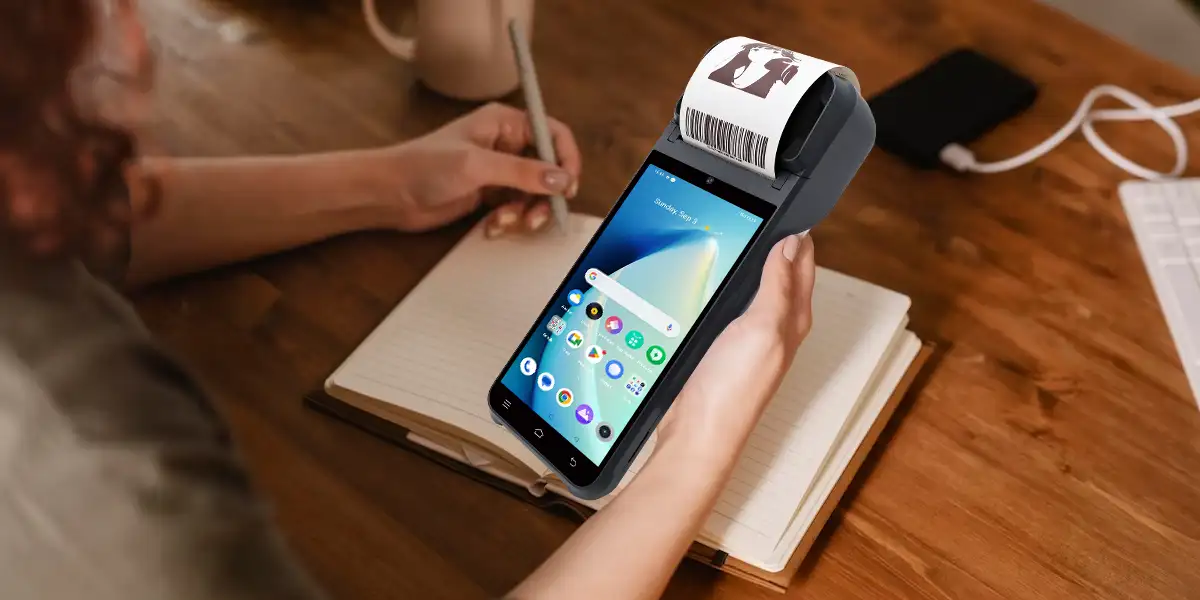
Odoo POS running successfully proves only that the terminal can load and operate the application interface. Receipt printing requires another interface that can reach the physical printer. A browser can display a receipt without knowing how to open a paper cover sensor, feed a thermal mechanism, activate a cutter, or report that the roll is empty.
Built-in Android printers rarely present one universal operating-system printer interface. A terminal manufacturer may expose the mechanism through an Android service, AIDL or Binder contract, Intent messages, a Java library, a JavaScript SDK, a WebSocket endpoint, or a local HTTP service. Odoo cannot infer those proprietary calls merely because Android detects that a printer exists inside the enclosure.
Browser security is one barrier, but protocol mismatch is the larger issue. Modern browsers can communicate with specifically permitted local-network devices, and Odoo 19 uses that capability for supported ePOS printers. The browser still cannot call an arbitrary manufacturer service or serial device without a supported integration path.
Printer compatibility therefore has at least five separate levels. Buyers should verify that Odoo loads, an order completes, the print transport connects, the printer finishes the job, and mechanical functions behave correctly. A successful application installation covers only the first level.
| Compatibility level | What a passing result proves | What it does not prove |
|---|---|---|
| Application launch | Odoo opens on the device | The printer is reachable |
| POS transaction | An order can be completed | A receipt can be produced |
| Print submission | A print service accepts a job | Paper has finished moving |
| Physical output | A receipt comes out | Text, cutting and retries are correct |
| Operational recovery | Faults can be handled safely | Every future firmware version will behave identically |
Odoo POS printing should be selected by printer interface rather than by marketing labels such as “Android POS” or “ESC/POS compatible.” The same 58 mm thermal mechanism can be exposed as a network ePOS device, a USB peripheral behind an IoT system, or an internal mechanism behind a proprietary Android service.
| Printing path | Typical hardware | Automatic printing | Main limitation |
|---|---|---|---|
| Browser printing | System printer configured by the operating system | Limited | Dialogs, driver behavior and weak cutter control |
| Direct network ePOS | Supported Epson ePOS printer on Ethernet or Wi-Fi | Yes | Protocol support, static IP and browser permission |
| Odoo IoT system | USB or network ESC/POS and supported USB ePOS printers | Yes | IoT setup, subscription and device recognition |
| Local Android bridge | Built-in thermal printer using a vendor service | Possible | Custom module, firmware and SDK dependency |
The protocol decision can be summarized without treating all thermal printers as equivalent.
A network printer using a supported Epson ePOS protocol can communicate directly with Odoo POS. A USB ePOS printer or ESC/POS printer normally uses an Odoo IoT system. An integrated Android printer requires an officially supported device module or a custom bridge that translates Odoo receipt output into manufacturer-specific commands.
Each route can print a receipt, but the engineering ownership and failure modes differ substantially.
Browser printing is the lowest-integration path. Odoo 19 states that when no receipt printer is configured, selecting `Print Full Receipt` invokes the browser's print function. The operating system and browser then manage printer selection, page formatting, and the final job.
This path fits occasional printing better than high-throughput checkout. A cashier may need to confirm a dialog, the browser may remember the wrong destination, and a desktop driver may apply margins designed for office paper rather than a narrow receipt roll. Automatic cutting, cash-drawer pulses, printer status, and silent retry behavior may be unavailable or inconsistent.
Browser printing remains useful as a diagnostic fallback. If the receipt renders correctly in the browser but an integrated printer does nothing, the problem is likely below the Odoo receipt-content layer. The engineer can then investigate the transport, bridge, service, permissions, or printer mechanism instead of rewriting the receipt template first.
Odoo documents the receipt fields, automatic-printing setting, manual reprints, and browser fallback on its official POS receipt configuration page.
Direct ePOS printing gives the browser a supported network endpoint. Odoo sends the job to a compatible printer over the local network, avoiding a separate IoT system for models that implement the expected Epson ePOS communication protocol.
A network connector does not establish ePOS compatibility by itself. Ethernet and Wi-Fi describe transport, while ePOS describes the application protocol. A generic network ESC/POS printer may still require an IoT system because it does not expose the web-facing protocol Odoo expects.
Odoo 19 recommends the Epson TM-m30 i, ii, and iii network models and identifies them as fully tested. Other Epson Wi-Fi or Ethernet models supporting the ePOS protocol may also work, but the buyer should confirm the precise model and interface variant. A USB-only version of a familiar printer name can require a different connection path.
Local Network Access now controls direct browser-to-printer communication in current Chromium browsers. According to Odoo 19 documentation updated in October 2026, Chromium 142 and later can request explicit permission for a site to access devices on the local network. Odoo recommends this method over the older self-signed-certificate workflow for supported ePOS printers.
The official Local Network Access instructions require the feature to be enabled in Odoo, browser permission to be granted, and the printer to use a static IP address. A dynamic address can make a previously working printer unreachable after a router lease changes.
Bluetooth should not be treated as an equivalent direct path. Odoo 19 explicitly states that Bluetooth receipt printers are not compatible with its documented receipt-printer integration. A third-party module may implement another route, but that project must be evaluated as custom integration rather than represented as standard Odoo support.
An Odoo IoT system acts as the controlled hardware gateway for printers that the browser cannot address directly. The physical IoT Box and Windows Virtual IoT connect peripherals to the Odoo database, expose recognized devices, and handle the device-side printing process.
ESC/POS printers normally enter Odoo through this gateway. Odoo 19 lists USB or network ESC/POS printers as requiring an IoT system. USB ePOS printers also use the IoT route because the direct browser path is designed around a network endpoint.
The physical and Windows implementations solve the same architectural problem with different maintenance responsibilities. A physical IoT Box is a dedicated microcomputer with Odoo IoT software preinstalled. Windows Virtual IoT runs on a Windows 10 or 11 computer and can use Windows drivers for supported devices. The Windows host must remain powered, reachable, patched, and protected from unrelated user changes.
Windows Virtual IoT should not be described as a universally free replacement. Odoo's current IoT system documentation states that production use of IoT systems and HTTPS certificate generation require an IoT Box subscription. Commercial terms should be checked for the target Odoo contract rather than inferred from the downloadable Windows installer.
IoT recognition is still device-specific. A printer may appear under the wrong subtype, require a Windows driver, or need an alternate command mode. Device discovery proves that the gateway can see an endpoint; it does not prove that receipt dimensions, character encoding, cutting, or error recovery are correct.
A local Android bridge is the usual custom path for an unsupported built-in printer. The bridge receives a constrained request from the Odoo front end or an Odoo module, converts the receipt into the manufacturer's supported data format, calls the terminal's printer service, and returns a meaningful result.
The bridge exists because the hardware boundary is local and proprietary.
An Android print bridge connects a browser-based POS to a manufacturer-controlled printer service through an approved local interface. The bridge may use JavaScript, WebSocket, HTTP, Intent, AIDL, or an SDK library, but production compatibility still depends on the terminal model, Android build, firmware, service version, and printer option.
That complete version tuple matters more than an APK filename or a statement that the terminal has an “open SDK.”
The safest architecture isolates vendor calls behind one adapter. Receipt data should remain independent from the mechanism-specific commands that print text, bitmaps, barcodes, QR codes, feeds, and cuts. An application-owned adapter can then map one receipt model to different manufacturer services without spreading proprietary code throughout the checkout workflow.
Teams building this layer should apply the POS SDK integration requirements to service binding, capability discovery, error mapping, job serialization, and physical fault testing. A demonstration that prints one line under ideal conditions is not sufficient evidence for production checkout.
The bridge must not expose an unrestricted local command server. Limit accepted origins, authenticate requests where the design permits, validate every field, allowlist printer actions, reject arbitrary file or shell operations, and keep the service inaccessible from public networks. Localhost reduces network exposure but does not replace application-level authorization.
Odoo 19 includes a specific integration path for selected iMin devices. Its official documentation names the iMin Swan 2 and Falcon 2, directs users to install current iMinOS, the Odoo and Android System WebView applications, and the POS iMin module, and connects the device without entering a printer IP address.
That support demonstrates the importance of a defined module-and-firmware combination. Odoo does not claim that every Android terminal with a thermal mechanism inherits iMin compatibility. Another manufacturer can use different services, permissions, package names, status codes, rendering rules, and firmware security controls.
Official support can also be function-specific. Odoo warns against using the named iMin systems for preparation-order printing. A device that prints customer receipts successfully may still be unsuitable for kitchen routing, bar tickets, or other multi-printer restaurant workflows.
Odoo's current receipt-printer documentation should therefore be read as a model-specific support statement, not a generic certification for integrated Android printers.
Third-party modules require the same evidence standard as an in-house bridge. Buyers should record the module publisher, supported Odoo versions, supported terminal models, update policy, source availability, security design, and recovery behavior. A marketplace listing is a starting point for evaluation, not proof that the target deployment will remain supported after an Odoo or firmware upgrade.
The correct path follows the printer's actual interface. Buyers should obtain a model-specific interface statement before ordering terminals or committing to a software rollout.
| Hardware situation | Preferred starting path | Evidence required before approval |
|---|---|---|
| Desktop or laptop with a configured system printer | Browser printing | Dialog behavior, margins, paper width and reprint workflow |
| Supported Epson ePOS printer on Ethernet or Wi-Fi | Direct ePOS with Local Network Access | Exact model, static IP, browser permission and automatic printing |
| USB ePOS printer | Odoo IoT system | Detection, correct subtype, receipt formatting and cutter behavior |
| USB or network ESC/POS printer | Odoo IoT system | Command compatibility, paper width, encoding and fault recovery |
| Officially supported integrated Android POS | Required Odoo device module | Exact device, OS, WebView and module versions |
| Other built-in Android thermal printer | Manufacturer bridge or custom Odoo module | SDK contract, firmware support and hardware-in-loop results |
| Bluetooth receipt printer | Separate custom evaluation | Do not represent it as standard Odoo compatibility |
A procurement specification should name the entire approved configuration. Record the terminal model, hardware revision, printer mechanism, Android version, firmware build, WebView version, Odoo version, integration module, device-service version, paper width, and cutter option. Replacing one element can change the result without changing the product name printed on the enclosure.
Pure-hardware ODM/OEM POS projects place more integration responsibility on the buyer and software team. ZCS represents this category for projects that bring their own POS or ERP application. The model offers deployment flexibility, but Odoo printing must still be verified against the selected hardware configuration and manufacturer interface; an open SDK is not a universal Odoo driver.
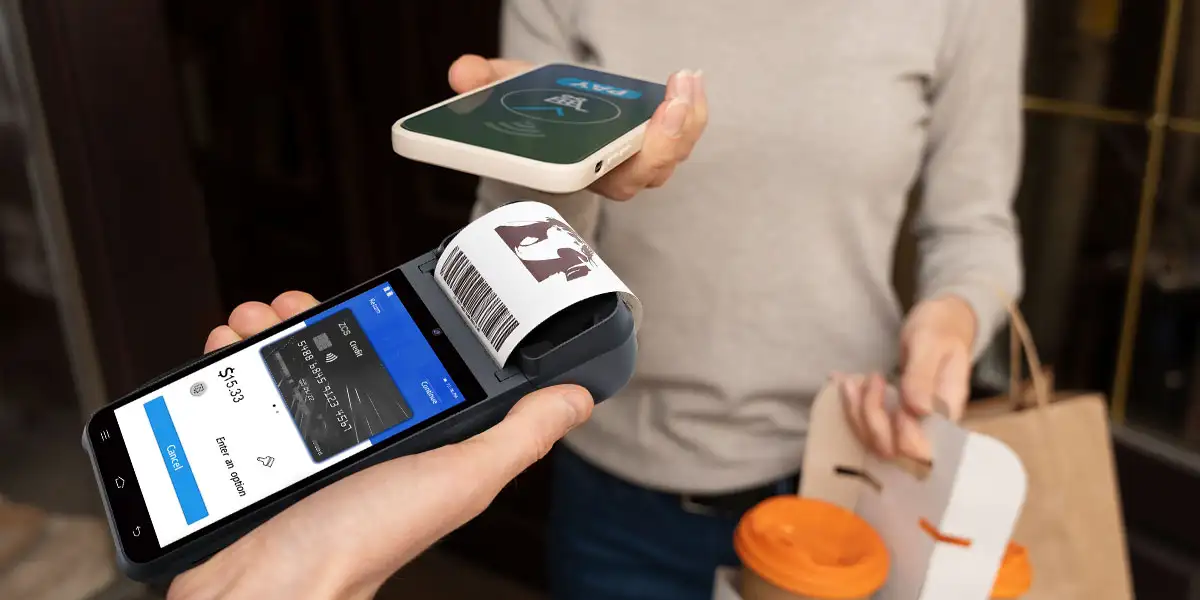
A local bridge should expose business-level print requests rather than raw hardware access. The Odoo side can submit a receipt job containing approved fields, while the bridge owns rendering, printer-state checks, queueing, timeouts, and vendor-specific calls.
Odoo POS receipt
        ↓
Odoo module or browser adapter
        ↓
Authenticated local request
        ↓
Android bridge service
        ↓
Manufacturer printer SDK or service
        ↓
Built-in thermal mechanism
A structured receipt model makes the integration portable and testable. The model can contain merchant details, order number, line items, taxes, discounts, payment references, totals, legal text, barcodes, and QR codes. A renderer then adapts that content to the supported width, density, encoding, and graphic capabilities.
Rendering everything as a bitmap is not always the right answer. Bitmap output can preserve complex scripts and layouts, but it may print more slowly, consume more memory, and produce poor results when scaling is incorrect. Native text commands can be faster but depend on supported code pages and font behavior. The acceptance test should compare real output rather than assume one renderer is universally better.
One queue should own each physical printer. Receipt, refund, reprint, kitchen, and background jobs can otherwise interleave or collide with a printer-busy state. Every job needs an identifier, creation time, intended destination, attempt count, and final state.
Automatic retries require an ambiguity rule. A timeout can occur before printing, during paper movement, or after the receipt finished but before the success response returned. Blindly sending the same job again can create duplicate customer receipts or duplicate kitchen production.
A Boolean success value hides the information staff need. The bridge should map vendor responses into states such as ready, busy, paper out, cover open, overheating, service unavailable, unsupported command, communication error, completed, and unknown.
Unknown must remain a valid state. Some built-in mechanisms cannot confirm physical completion. The application should not fabricate certainty when the service reports only that it accepted a job.
The bridge should accept only the minimum operations needed for checkout. Printing approved receipt data, reading non-sensitive printer status, and cancelling a known queued job are easier to secure than an endpoint that accepts arbitrary commands or files.
Logs should support diagnosis without collecting unnecessary payment data. Record job IDs, timestamps, device and software versions, normalized error states, and retry decisions. Mask or omit cardholder data, credentials, access tokens, and full receipt content unless a justified support process requires them.
Customer receipts and preparation tickets have different routing rules. A customer receipt normally follows payment completion to one receipt printer. A restaurant order can send drinks to a bar printer, hot dishes to a kitchen printer, and another copy to an expediting station according to POS product categories.
A successful customer-receipt test does not validate preparation printing. Kitchen workflows introduce multiple destinations, category changes, item modifications, voids, reprints, and timing before final payment. The integration must confirm that every item reaches the correct station once.
Restaurant teams should test those handoffs within the wider food service POS workflow. The bridge link is operational: a printer decision affects production control, not only the appearance of the customer bill.
Paperless preparation screens can remove some printer failures without removing integration work. A kitchen display system still needs reliable order routing, status changes, acknowledgement, reconnection, and duplicate prevention. Replacing paper with a screen changes the output device; it does not collapse the order lifecycle into one step.
A production acceptance test must create real output and real faults on the final hardware. Emulator screenshots, browser previews, SDK sample applications, and supplier demonstrations cannot validate paper movement, sensors, thermal throttling, cutter behavior, or service recovery.
| Test area | Required checks | Failure to capture |
|---|---|---|
| Basic output | Manual receipt, automatic receipt and historical reprint | Missing or duplicate receipt |
| Layout | 58 mm or 80 mm width, wrapping, alignment and totals | Truncated prices or unreadable columns |
| Languages | Latin, Chinese, Arabic, Thai and mixed scripts as required | Squares, mojibake or reversed text |
| Graphics | Logo, QR code and barcode readability | Slow, clipped or unscannable output |
| Mechanism | Feed, partial/full cut and cash-drawer pulse if used | Paper jams or incomplete separation |
| Physical faults | Paper out, cover open, overheat and jam | False success or blocked checkout |
| Lifecycle | App restart, service restart, terminal reboot and firmware update | Lost binding or incompatible service |
| Connectivity | Wi-Fi loss, router restart, IP change and internet outage | Unreachable printer or duplicate retry |
| Load | Consecutive orders, long receipts and concurrent requests | Interleaving, queue stall or overheating |
| Recovery | Controlled reprint and ambiguous-completion handling | Duplicate customer or kitchen output |
The report should preserve the tested version tuple. “Odoo printing passed” is too broad to reproduce. A useful record identifies Odoo, module, Android, WebView, firmware, printer service, terminal model, printer option, connection path, and test date.
Fleet deployment adds change control to the print test. A remote application update can succeed while a printer bridge fails to bind on one firmware branch. The Android POS device management process should stage releases, verify a representative hardware sample, monitor functional output, and preserve a rollback route.
Troubleshooting should begin at the highest confirmed layer and move downward. Reinstalling the application first can erase useful evidence without addressing a blocked browser permission, wrong printer protocol, unavailable bridge service, or mechanical fault.
| Symptom | Most likely layer | First checks |
|---|---|---|
| Browser preview appears, but no automatic receipt prints | Printing path not configured | POS printer settings and selected path |
| Browser print dialog works, but silent printing does not | Browser printing limitation | Configured printer integration and kiosk policy |
| ePOS printer was working and becomes unreachable | Network addressing or permission | Static IP, router lease and Local Network Access |
| IoT system sees a device, but output is incorrect | Device subtype or command mode | Printer classification, driver and protocol |
| Odoo works, but the internal printer never responds | Missing or incompatible bridge | Module, service binding, firmware and permissions |
| Receipt prints unreadable characters | Rendering or encoding | Code page, font, bitmap conversion and language sample |
| Receipt prints but does not cut | Capability or command mapping | Cutter option, SDK method and firmware support |
| Printer restarts produce duplicate receipts | Queue and retry policy | Job IDs, completion state and idempotency rules |
| Checkout freezes during printing | Blocking integration call | Threading, timeout and service-response handling |
A browser console error is evidence, not a complete diagnosis. A blocked local-network request points toward permission, origin, address, or security configuration. A successful HTTP response still does not prove that the Android service completed a mechanical print.
Hardware logs and application logs should share a job identifier. The identifier lets support teams connect the Odoo action, bridge request, vendor-service response, printer-state transition, and staff reprint without storing unnecessary receipt content.
Buyers should make printing evidence part of the purchase specification. The supplier, Odoo integrator, application developer, and customer should agree on ownership before mass deployment.
The evidence package should include:
Responsibility boundaries should be written beside the test cases. Odoo may own the receipt workflow, an integrator may own the module, the terminal manufacturer may own the printer service, and the merchant may own the network. A vague promise that “the printer is supported” does not identify who fixes a failure at any boundary.
Change control should continue after acceptance. Odoo updates, Chromium changes, Android security updates, WebView releases, firmware patches, and module revisions can alter the path. Stage each change on the approved configuration before fleet rollout and retain the last known working combination.
The simplest reliable path is the correct path. Browser printing is suitable when occasional manual output and operating-system dialogs are acceptable. Direct ePOS is appropriate for supported network printers. An Odoo IoT system fits standard USB or network peripherals that require a hardware gateway. A local bridge fits an integrated Android printer only when its interface and lifecycle are documented and tested.
Built-in hardware should be evaluated as an integration, not a checkbox. A printer inside the terminal can reduce cables and counter space, but it also places the application, bridge, firmware, and mechanism in one dependency chain. The operational benefit is real only when that chain survives faults, updates, multilingual output, and sustained checkout load.
No Odoo compatibility claim should extend beyond the tested configuration. Record the exact model and versions, preserve the evidence, and repeat critical print tests after any component changes. That discipline converts “Odoo runs on Android” into a defensible statement about whether the complete checkout system can produce the right receipt at the right time.

Odoo POS can print to a built-in Android printer only when a supported module or local bridge connects Odoo to the manufacturer's printer service. Installing Odoo or opening it in a browser does not create that device-specific connection automatically.
ESC/POS support does not guarantee automatic Odoo compatibility. Odoo 19 routes ESC/POS receipt printers through an IoT system, and the exact interface, command support, paper width, character handling, and cutter behavior still require testing.
An IoT system is not required for every printing path. Browser printing can use an operating-system printer, supported network ePOS printers can connect directly, and specified integrated Android devices can use dedicated modules. USB ePOS and standard ESC/POS integrations normally require an IoT system.
Odoo 19 does not list Bluetooth receipt printers as compatible with its standard receipt-printer integration. A third-party module may implement another method, but the result should be treated as a custom integration and tested on the exact hardware.
Unreadable characters normally indicate a mismatch in encoding, code page, font support, or bitmap rendering. Test every required language on paper and confirm whether the selected path prints native text, rendered images, or a mixture of both.
Odoo restaurant configurations can route preparation orders to different printers according to POS product categories. Each destination, category change, modifier, void, reprint, and recovery path must be tested independently from the customer-receipt printer.






 Home
Home  How to Choose PAX A920 Alternatives for Your Payment and POS Software?
